Showing posts with label ios. Show all posts

Tuesday, January 17, 2017

Lazy Loading and Memory Management of Images in UITableView in iOS


Introduction to Lazy Loading

What is lazy loading?
A little introduction of lazy loading is  it is a design pattern to defer the initialization of an object until the point at which it is needed. In simple words create objects when it is needed.

Problems to Tackle

Before talking about lazy loading of images, I want to mention about problems / issues associated in handling images in UITableView in iOS. These are:
  1. Scrolling is blocked / interrupted – Downloading images from server OR loading from device local storage is heavy task and it may take some time. If you load  images directly in cellForRowAtIndexPath() method of UITableView then it blocks the UI thread and your UITableView scroll will be interrupted and not smooth. You  need a mechanism to load images in a worker (separate) thread and show a place holder image until the image in not downloaded and placed in memory for fast access. Remember accessing images from Hard disk may also takes some time.
  2. App Heap Memory can overshoot – If we load many images in memory for faster access by UITableView, then memory (heap memory) allocated to the application might overshoot and app will crash with Out of Memory (OOM) error.
  3. Work with Recycling of Views can be tricky – When image is  downloaded  we need to  decide when to set a particular image in its ImageView of that row it is meant for.  It may be possible that the ImageView object will recycle and it  is given to another image and we end up showing wrong image.

Solution

Memory Locations – Space Vs Accessibility:

There are 3 locations where images are stored. Their comparison on Memory space availability and Accessibility speed is given below:
  1. Server (Memory Space is HIGH but Accessibility is SLOW)
  2. Hard Disk on Mobile (Memory Space is MEDIUM and Accessibility is MEDIUM)
  3. Heap Memory (Memory Space is LOW and Accessibility is FAST)
We need to create a balance among above 3 locations for optimum utilization of accessibility and memory space.

Mappings:

2 Mappings are required to manage the show. I have given them names. These are
  1. Bitmap Cache Map  (Unique ImageURL of Row TO Bitmap of Image)  – NSCache class provided in iOS SDK to store images in memory (Heap) will be used here. NSCache will act as cache and will also recycle the images after a certain limit is reached.
  2. Image Download Tracker (Image URL TO Object of NSOperation) – This will map the URL and the status of image that is being downloaded from the URL. It is possible that request to download the same image comes and that image is already in process of downloading. This tracker will help to ignore such requests.

Sequence of Steps:

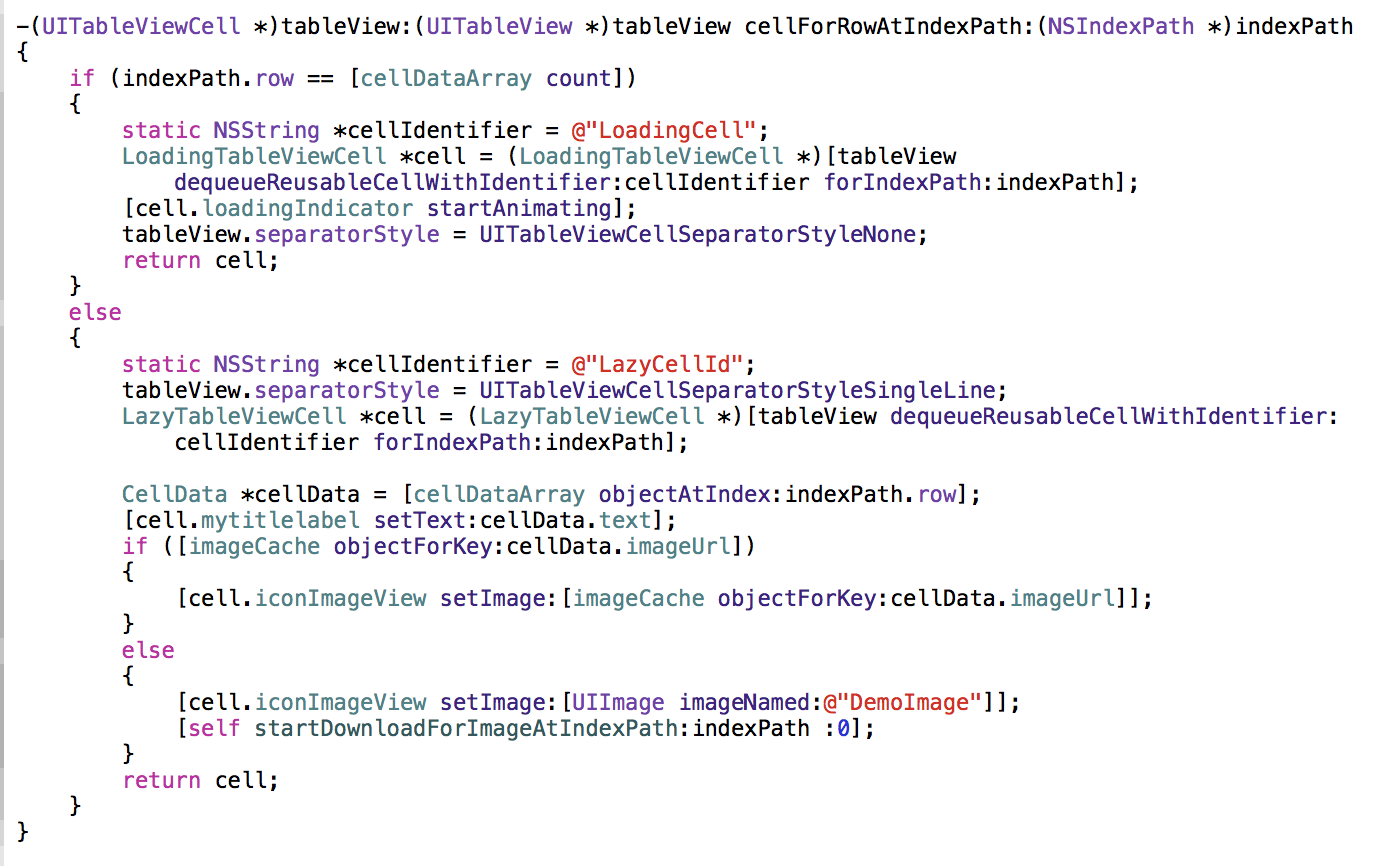
1. When user comes to UITableView the cellForRowAtIndexPath is fired for a single cell. Here we will first check that if image is available in the object of NSCache class against the key which will be the image URL. If it is there then we will get the value of UIImage and set on cell’s imageView.
2. If image is not available in object of NSCache class then in that case we will make a object of NSOperation Class and add in Queue whose task is to fetch image either from the Hard Disk or from the server.
3. When this operation will start we will first check that if image is available in local storage. If image id not present here we first download the image and then return back to the ViewController via delegate method taking object of UIImage.
4. If the image is available on device local storage Or it is available after downloading from server, it is put in Bitmap Cache  Map and send for display.
CHECKPOINT 2 of 3 – It is possible that by the time image is to be loaded from device local storage (Either already available OR after download), UITableView has been scrolled by the user and ImageView object is recycled and allocated to other row with a different ID. Mapping of ImageView and ID is checked in ImageView Recycler Map for that. If ImageView has been recycled, we don’t need to place this image in Bitmap Cache Map. But keep it on hard disk.
6. To display the image on ImageView we post a Runnable on the UI Thread using the Handler.
CHECKPOINT 3 of 3 – Just before image is set on ImageView we again check in ImageView Recycler Map if the Mapping of ImageView (IV1) and Id (ID1) exists. If the mapping exists we set the image on ImageView else the place  holder (default) image is set.

Tuesday, June 7, 2016

Top 5 Android Testing Frameworks


Top 5 Android Testing Frameworks (with Examples)

Android (including iOS) developers have had unlimited access to some advanced cloud-based solution, like Testdroid Cloud, to run automated tests on a large scale of real devices for quality assurance. Also the emergence of different Android testing frameworks has substantially eased Android developers’ lives.

Robotium

Undoubted, Robotium was once the most widely used Android testing framework in the early days of Android world. With a similarity with Selenium in Android, it makes testing API simpler.
Robotium is an open source library extending JUnit with plenty of useful methods for Android UI testing. It provides powerful and robust automatic black-box test cases for Android apps (native and hybrid) and web testing. With Robotium you can write function, system and acceptance test scenarios, and test applications where the source code is available.

Robotium code example:

// Public void for the operation
public void testRecorded() throws Exception {
// Wait for the text 'Hello!' to be shown for newbie
if (solo.waitForText("Hello!")) {
// R class ID identifier for 'Sign in' - and click it
solo.clickOnView(solo.findViewById("com.twitter.android.R.id.sign_in"));
// R class ID identifier for entering username
solo.enterText((EditText) solo.findViewById("com.twitter.android.R.id.login_username"),"username");
// R class ID identifier for entering password
solo.enterText((EditText) solo.findViewById("com.twitter.android.R.id.login_password"),"password");
// R class ID identifier for clicking log in
solo.clickOnView(solo.findViewById("com.twitter.android.R.id.login_login"));
// Wait until log in is done
solo.waitForActivity("HomeTabActivity");
}
// Activate the text field to compose a tweet
solo.clickOnView(solo.findViewById("com.twitter.android.R.id.menu_compose_tweet"));
// Type the tweet
solo.enterText((EditText) solo.findViewById("com.twitter.android.R.id.edit"), "Testdroid");
// Tweeting!
solo.clickOnView(solo.findViewById("com.twitter.android.R.id.composer_post"));
}
For your convenience, Testdroid Recorder is an awesome recording tool built with Robotium for test script creation. By performing actual actions on your real device, it records every step or action you take and converts to Javascript for your further modification.
In addition, you are also entitled to fully download and utilize our Extension Library – ExtSolo. It includes useful methods that have not been merged into Robotium, for instance:
  • Automatic scaling of x,y clicks for any resolution
  • Multi-path drags
  • Automatic screenshots on test failure
  • Mock locations
  • Change device language
  • Control WiFi connection

uiautomator

While Robotium is a good yet basic framework, uiautomator allows you to do more in testing Android apps and games. Google’s test framework allows you to test user interface (UI) of your native Android apps on one or more devices. Another advantage of uiautomator is that it runs JUnit test cases with special privileges, which means test cases can span across different processes. It also provides five different classes for developers to use, including
com.android.uiautomator.core.UiCollection;
com.android.uiautomator.core.UiDevice;
com.android.uiautomator.core.UiObject;
com.android.uiautomator.core.UiScrollable;
com.android.uiautomator.core.UiSelector
Similar to its time of birth, it only works on Android devices with API level 16 or higher. Another downside of uiautomator is that it doesn’t support webview, with no way to directly access Android objects.

uiautomator’s code example:

// Public void for the operation
public void testSignInAndTweet() throws Exception {
// Starting application:
getUiDevice().wakeUp(); // Press Home button to ensure we're on homescreen
getUiDevice().pressHome(); // Select 'Apps' and click button
new UiObject(new UiSelector().description("Apps")).click(); // Select 'Twitter' and click
new UiObject(new UiSelector().text("Twitter")).click(); // Locate and select 'Sign in'
UiSelector signIn = new UiSelector().text("Sign In"); // If button is available, click
UiObject signInButton = new UiObject(signIn);
if (signInButton.exists()) {
signInButton.click(); // Set the username
new UiObject(new
UiSelector().className("android.widget.EditText").instance(0)).setText("username");
new UiObject(new
UiSelector().className("android.widget.EditText").instance(1)).setText("password");
new UiObject(new UiSelector().className("android.widget.Button").
text("Sign In").instance(0)).click(); // Wait Sign in progress window
getUiDevice().waitForWindowUpdate(null, 2000); // Wait for main window
getUiDevice().waitForWindowUpdate(null, 30000);
}
new UiObject(new UiSelector().description("New tweet")).click(); // Typing text for a tweet
new UiObject(new UiSelector().className("android.widget.LinearLayout").instance(8)).
setText("Awesome #Testdroid!"); // Tweeting!
new UiObject(new UiSelector().text("Tweet")).click();

Espresso

Espresso is the latest Android test automation framework that got open-sourced by Google, making it available for developers and testers to hammer out their UIs. Espresso has an API that is small, predictable, easy to learn and built on top of the Android instrumentation framework. You can quickly write concise and reliable Android UI tests with it. It is supported on API level 8 (Froyo), 10 (Gingerbread), and 15 (Ice Cream Sandwich) and afterwards.
It’s quite reliable, synchronizing with the UI thread and fast because there is no need for any sleeps (tests run on same millisecond when an app becomes idle). But it does not have support for webviews as well.

Espresso code example:

public void testEspresso() {
// Check if view with the text 'Hello.' is shown
onView(withText("Hello.")).check(matches(isDisplayed()));
// R class ID identifier for 'Sign in' - and click it
onView(withId(getInstrumentation().getTargetContext().getResources()
.getIdentifier("com.twitter.android:id/sign_in", null, null))).perform(click());
// R class ID identifier for entering username
onView(withId(getInstrumentation().getTargetContext().getResources()
.getIdentifier("com.twitter.android:id/login_username", null, null))).perform((typeText("username")));
// R class ID identifier for entering password
onView(withId(getInstrumentation().getTargetContext().getResources()
.getIdentifier("com.twitter.android:id/login_password", null, null))).perform((typeText("password")));
// R class ID identifier for clicking log in
onView(withId(getInstrumentation().getTargetContext().getResources()
.getIdentifier("com.twitter.android:id/login_login", null, null))).perform(click());
// Activate the text field to compose a tweet
onView(withId(getInstrumentation().getTargetContext().getResources()
.getIdentifier("com.twitter.android:id/menu_compose_tweet", null, null))).perform(click());
// Type the tweet
onView(withId(getInstrumentation().getTargetContext().getResources()
.getIdentifier("com.twitter.android:id/edit", null, null))).perform((typeText(”#Testdroid")));
// Tweeting!
onView(withId(getInstrumentation().getTargetContext().getResources()
.getIdentifier("com.twitter.android:id/composer_post", null, null))).perform(click());
}

Calabash

Calabash is a cross-platform test automation framework for Android and iOS native and hybrid applications. Calabash’s easy-to-understand syntax enables even non-technical people to create and execute automated acceptance tests for apps on both of these mobile platforms. Calabash’s tests are described in Cucumber and then converted to Robotium or Frank in run time. It supports about 80 different natural language commands (controllers), and new controllers can be implemented in Ruby or Java.

Calabash code example:

Feature: Login feature
Scenario: As a valid user I can log into my app
I wait for text "Hello"
Then I press view with id "Sign in"
Then I enter text "username" into "login_username"
Then I enter text "password" into "login_password"
Then I wait for activity "HomeTabActivity"
Then I press view with id "menu_compose_tweet"
Then I enter text "Testdroid" into field with id "edit"
Then I press view with id "composer_post"

Appium

Appium is a mobile test automation framework (and tool) for native, hybrid and mobile-web apps for iOS and Android. It uses JSONWireProtocol internally to interact with iOS and Android apps usingSelenium’s WebDriver. It supports Android via uiautomator (API level 16 or higher) and Seledroid (API level lower than 16), iOS via UI Automation, and mobile web as Selenium driver for Android and iOS.
One of the biggest advantages of Appium is that you can write your Appium scripts on almost any programming language (e.g. Java, Objective-C, JavaScript, PHP, Ruby, Python or C#, etc), freedom from having to select tools, compatibility across the most important platforms (Android and iOS), freedom from having to install and configure devices to test and more. Also if you are familiar with Selenium, then it’s easy for you to use Appium in mobile app testing. They use the same WebDriver and DesiredCapabilities is used in the same way. Configuring an application to run on Appium has a lot of similarities to Selenium.

Appium code example:

# wait for hello
sleep(3)
textFields = driver.find_elements_by_tag_name('textField')
assertEqual(textFields[0].get_attribute("value"), "Hello")
# click sign-in button
driver.find_elements_by_name('Sign in')[0].click()
# find the text fields again, and enter username and password
textFields = driver.find_elements_by_tag_name('textField')
textFields[0].send_keys("twitter_username")
textFields[1].send_keys("passw0rd")
# click the Login button (the first button in the view)
driver.find_elements_by_tag_name('button')[0].click()
# sleep
sleep(3)
# click the first button with name "Compose"
driver.find_elements_by_name('Compose')[0].click()
# type in the tweet message
driver.find_elements_by_tag_name('textField')[0].send_keys(”#Testdroid is awesome!")
# press the Send button
driver.find_elements_by_name('Send')[0].click()
# exit
driver.quit()

Sunday, March 29, 2015

iPhone Interview Questions with answers

Q.iOS Architecture


Q.iOSApp lifecycle


Q. Where can you test Apple iPhone apps if you don’t have the device?
A.  iOS Simulator can be used to test mobile applications. Xcode tool that comes along with iOS SDK includes Xcode IDE as well as the iOS Simulator. Xcode also includes all required tools and frameworks for building iOS apps.  However, it is strongly recommended to test the app on the real device before publishing it.

Q. Does iOS support multitasking?
A.  iOS 4 and above supports multi-tasking and allows apps to remain in the background until they are launched again or until they are terminated.  

Q. What are the tools required to develop iOS applications?
 A. iOS development requires Intel-based Macintosh computer and iOS SDK. Current Mac os version is 10.11, Xcode version 7.1.1 iOS Version 9.1

Q. Name the framework that is used to construct application’s user interface for iOS.
 A. The UIKit framework is used to develop application’s user interface for iOS. UIKit framework provides event handling, drawing model, windows, views, and controls specifically designed for a touch screen interface.

Q. Name the application thread from where UIKit classes should be used? 
A.  UIKit classes should be used only from an application’s main thread.  
Note: The derived classes of UIResponder and the classes which manipulate application’s user interface should be used from application’s main thread. 

Q. Why an app on iOS device behaves differently when running in foreground than in background? 
A. An application behaves differently when running in foreground than in background because of the limitation of resources on iOS devices.

Q. How can an operating system improve battery life while running an app?
 A. An app is notified whenever the operating system moves the apps between foreground and background.  The operating system improves battery life while it bounds what your app can do in the background. This also improves the user experience with foreground app.

Q. When an app is said to be in active state?
 A. An app is said to be in active state when it is running in foreground and is receiving events.

Q. An app is loaded into memory but is not executing any code. In which state will it be in?
 A. An app is said to be in suspended state when it is still in memory but is not executing any code.

Q. How can you respond to state transitions on your app? 
A. On state transitions can be responded to state changes in an appropriate way by calling corresponding methods on app's delegate object.
For example: applicationDidBecomeActive method can be used to prepare to run as the foreground app.
applicationDidEnterBackground method can be used to execute some code when app is running in the background and may be suspended at any time.
applicationWillEnterForeground method can be used to execute some code when your app is moving out of the background
applicationWillTerminate method is called when your app is being terminated.

Q. List down app's state transitions when it gets launched.
 A. Before the launch of an app, it is said to be in not running state.
When an app is launched, it moves to the active or background state, after transitioning briefly through the inactive state.

Q. Who calls the main function of you app during the app launch cycle? 
A. During app launching, the system creates a main thread for the app and calls the app’s main function on that main thread. The Xcode project's default main function hands over control to the UIKit framework, which takes care of initializing the app before it is run.

Q. What is the use of controller object UIApplication?
A. Controller object UIApplication is used without subclassing to manage the application event loop.
It coordinates other high-level app behaviors.
It works along with the app delegate object which contains app-level logic.

Q. Which object is create by UIApplicationMain function at app launch time?
A. The app delegate object is created by UIApplicationMain function at app launch time. The app delegate object's main job is to handle state transitions within the app.

Q. How is the app delegate is declared by Xcode project templates?
A. App delegate is declared as a subclass of UIResponder by Xcode project templates.

Q. What happens if IApplication object does not handle an event?
A. In such case the event will be dispatched to your app delegate for processing.

Q. Which app specific objects store the app's content?
A. Data model objects are app specific objects and store app’s content. Apps can also use document objects to manage some or all of their data model objects.

Q. Are document objects required for an application? What does they offer?
A. Document objects are not required but are very useful in grouping data that belongs in a single file or file package.

Q. Which object manage the presentation of app's content on the screen?
A. View controller objects takes care of the presentation of app's content on the screen. A view controller is used to manage a single view along with the collection of subviews. It makes its views visible by installing them in the app’s window.

Q. Which is the super class of all view controller objects?
A. UIViewController class. The functionality for loading views, presenting them, rotating them in response to device rotations, and several other standard system behaviors are provided by UIViewController class.

Q. How do you change the content of your app in order to change the views displayed in the corresponding window?
A. To change the content of your app, you use a view controller to change the views displayed in the corresponding window. Remember, window itself is never replaced.

Q. Define view object.
A. Views along with controls are used to provide visual representation of the app content. View is an object that draws content in a designated rectangular area and it responds to events within that area.

Q. What are layer objects and what do they represent?
A. Layer objects are data objects which represent visual content. Layer objects are used by views to render their content. Custom layer objects can also be added to the interface to implement complex animations and other types of sophisticated visual effects.


Q. Difference between Static & Dynamic TableView
Static cells are basically a "what you see is what you get" in Interface Builder. What you put into theUITableView is what you'll see when you run the app.
Dynamic prototypes, instead, allow you to lay out cells that you can re-use by calling:
UITableViewCell * cell = [tableView dequeueReusableCellWithIdentifier:CELL_ID_SET_IN_IB];
With this, you determine the number of cells using the delegate methods in the UITableViewController. You can have multiple prototype cells and determine which to load depending on index path.

we can use segues with both.
Q. What is NSUserDefaults? What type of data can we store there?
NSUserDefaults is a simple property list (aka plist) where an app can store simple data. While there is no limit to its size (besides the device’s own limits), you should not store a large amount of data here. The file is written and read atomically (as a whole), so the more data that is in there, the longer that will take
Q. What is the output binary format?
.ipa file
iOS Enterprise Program - Can distribute apps only within enterprise not to App Store. No limit on number of devices you can distribute your apps to. Can restrict access where member can request developer certificate, admins approve it. Cannot distribute apps via AppStore.
iOS Developer Program - Can test the apps on max 100 devices only. Distribute apps to AppStore.

Q. Explain retain counts.

Retain counts are the way in which memory is managed in Objective-C. When you create an object, it has a retain count of 1. When you send an object a retain message, its retain count is incremented by 1. When you send an object a release message, its retain count is decremented by 1. When you send an object a autorelease message, its retain count is decremented by 1 at some stage in the future. If an objectʼs retain count is reduced to 0, it is deallocated.