Wednesday, April 4, 2012

How to Rename Your Wireless Apple Mouse, Magic Mouse

As many of you should know, Apple has recently launched a new, Multi-Touch capable mouse - the Magic Mouse. The older mouse didn’t leave the scene as the new one arrived, although Apple is heavily promoting the new peripheral. The two mice have something in common - they’re Bluetooth-capable and work with Mac OS X wirelessly.

Wireless mice are great to use. You feel completely free to handle them any way you want. With Apple mice, the functionality goes above that of traditional mice. They’re even allowed to have their own name, like “John’s Mouse,” or “My Super-Cool Mouse.” But how do you give your mouse a name, or how do you change the name of an Apple wireless mouse, in case you’re the not the first person to use it? This short tutorial will let you in on that secret.

Upon setting up your wireless Apple mouse (whether it’s the former Mighty Mouse, or the new, exquisite Magic Mouse), Mac OS X pairs the device to the computer you’re going to use it with, and automatically assigns it a name. The name is assigned based on your computer’s name (root directory). However, if you want to change it, you can. Here's how.

(don't forget to click on the images for a larger view)

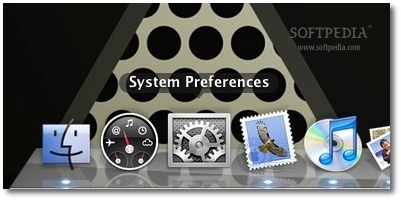
1. With your wireless mouse connected and working, launch System Preferences.

Review image


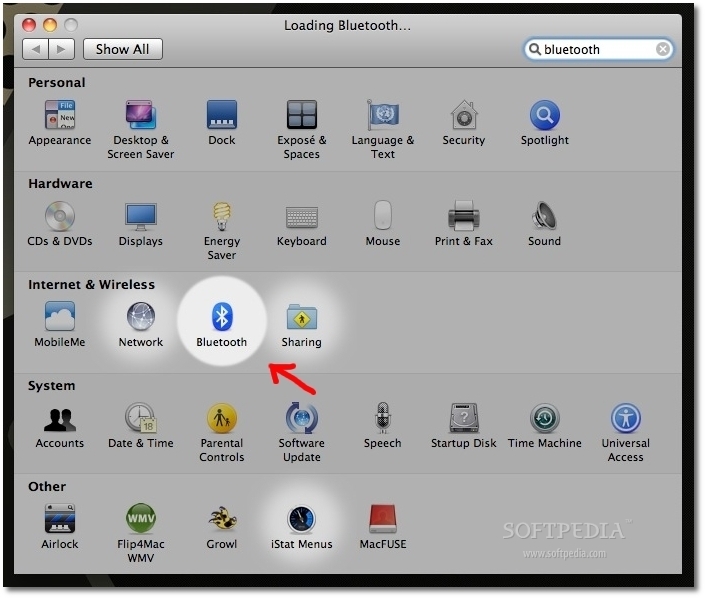
2. For one reason or another, Apple decided not to include the option to rename your paired devices at first glance. So, instead of choosing “Mouse,” choose “Bluetooth.” It should be on the third row down, between “Network and “Sharing.”

Review image

3. Once in Bluetooth prefs, select the mouse you want to rename and click the small cogwheel, located under the list of paired devices (the cogwheel is found throughout Mac OS X and typically hides more options).

Review image

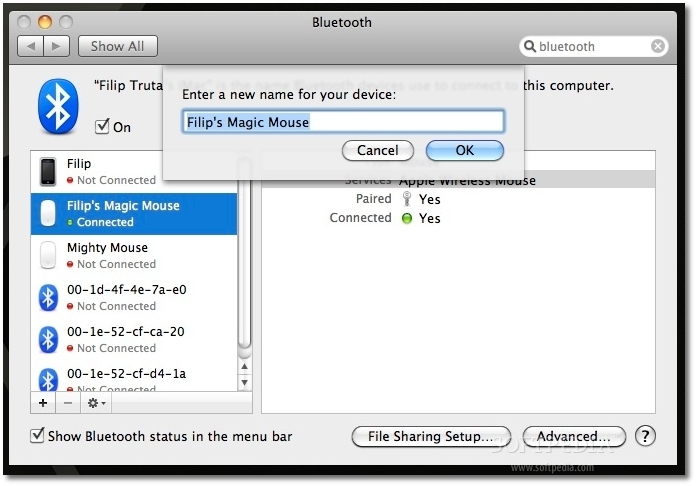
4. As shown above, select “rename.” A drop-down menu will appear containing a field where you can write down the new name of your mouse - as shown in the screenshot below.

Review image

5. Hit OK, and close System Prefs. That’s it!

You can now check out your rodent’s new name by clicking on the Bluetooth icon in the menubar, located at the top right side of your Mac’s screen.

Review image

Tuesday, April 3, 2012

App Store Review Guidelines


Introduction

We're pleased that you want to invest your talents and time to develop applications for iOS. It has been a rewarding experience - both professionally and financially - for tens of thousands of developers and we want to help you join this successful group. We have published our App Store Review Guidelines in the hope that they will help you steer clear of issues as you develop your app and speed you through the approval process when you submit it.
We view Apps different than books or songs, which we do not curate. If you want to criticize a religion, write a book. If you want to describe sex, write a book or a song, or create a medical app. It can get complicated, but we have decided to not allow certain kinds of content in the App Store. It may help to keep some of our broader themes in mind:
  • We have lots of kids downloading lots of apps, and parental controls don't work unless the parents set them up (many don't). So know that we're keeping an eye out for the kids.
  • We have over 350,000 apps in the App Store. We don't need any more Fart apps. If your app doesn't do something useful or provide some form of lasting entertainment, it may not be accepted.
  • If your App looks like it was cobbled together in a few days, or you're trying to get your first practice App into the store to impress your friends, please brace yourself for rejection. We have lots of serious developers who don't want their quality Apps to be surrounded by amateur hour.
  • We will reject Apps for any content or behavior that we believe is over the line. What line, you ask? Well, as a Supreme Court Justice once said, "I'll know it when I see it". And we think that you will also know it when you cross it.
  • If your app is rejected, we have a Review Board that you can appeal to. If you run to the press and trash us, it never helps.
  • If you attempt to cheat the system (for example, by trying to trick the review process, steal data from users, copy another developer's work, or manipulate the ratings) your apps will be removed from the store and you will be expelled from the developer program.
  • This is a living document, and new apps presenting new questions may result in new rules at any time. Perhaps your app will trigger this.
Lastly, we love this stuff too, and honor what you do. We're really trying our best to create the best platform in the world for you to express your talents and make a living too. If it sounds like we're control freaks, well, maybe it's because we're so committed to our users and making sure they have a quality experience with our products. Just like almost all of you are too.

Table of Contents

1. Terms and conditions

  • 1.1

    As a developer of applications for the App Store you are bound by the terms of the Program License Agreement (PLA), Human Interface Guidelines (HIG), and any other licenses or contracts between you and Apple. The following rules and examples are intended to assist you in gaining acceptance for your app in the App Store, not to amend or remove provisions from any other agreement.

2. Functionality

  • 2.1

    Apps that crash will be rejected
  • 2.2

    Apps that exhibit bugs will be rejected
  • 2.3

    Apps that do not perform as advertised by the developer will be rejected
  • 2.4

    Apps that include undocumented or hidden features inconsistent with the description of the app will be rejected
  • 2.5

    Apps that use non-public APIs will be rejected
  • 2.6

    Apps that read or write data outside its designated container area will be rejected
  • 2.7

    Apps that download code in any way or form will be rejected
  • 2.8

    Apps that install or launch other executable code will be rejected
  • 2.9

    Apps that are "beta", "demo", "trial", or "test" versions will be rejected
  • 2.10

    iPhone apps must also run on iPad without modification, at iPhone resolution, and at 2X iPhone 3GS resolution
  • 2.11

    Apps that duplicate apps already in the App Store may be rejected, particularly if there are many of them, such as fart, burp, flashlight, and Kama Sutra apps.
  • 2.12

    Apps that are not very useful, are simply web sites bundled as apps, or do not provide any lasting entertainment value may be rejected
  • 2.13

    Apps that are primarily marketing materials or advertisements will be rejected
  • 2.14

    Apps that are intended to provide trick or fake functionality that are not clearly marked as such will be rejected
  • 2.15

    Apps larger than 20MB in size will not download over cellular networks (this is automatically prohibited by the App Store)
  • 2.16

    Multitasking apps may only use background services for their intended purposes: VoIP, audio playback, location, task completion, local notifications, etc.
  • 2.17

    Apps that browse the web must use the iOS WebKit framework and WebKit Javascript
  • 2.18

    Apps that encourage excessive consumption of alcohol or illegal substances, or encourage minors to consume alcohol or smoke cigarettes, will be rejected
  • 2.19

    Apps that provide incorrect diagnostic or other inaccurate device data will be rejected
  • 2.20

    Developers "spamming" the App Store with many versions of similar apps will be removed from the iOS Developer Program
  • 2.21

    Apps that are simply a song or movie should be submitted to the iTunes store. Apps that are simply a book should be submitted to the iBookstore.
  • 2.22

    Apps that arbitrarily restrict which users may use the app, such as by location or carrier, may be rejected
  • 2.23

    Apps must follow the iOS Data Storage Guidelines or they will be rejected
  • 2.24

    Apps that are offered in Newsstand must comply with schedules 1, 2 and 3 of the Developer Program License Agreement or they will be rejected

3. Metadata (name, descriptions, ratings, rankings, etc)

  • 3.1

    Apps or metadata that mentions the name of any other mobile platform will be rejected
  • 3.2

    Apps with placeholder text will be rejected
  • 3.3

    Apps with descriptions not relevant to the application content and functionality will be rejected
  • 3.4

    App names in iTunes Connect and as displayed on a device should be similar, so as not to cause confusion
  • 3.5

    Small and large app icons should be similar, so as to not to cause confusion
  • 3.6

    Apps with app icons and screenshots that do not adhere to the 4+ age rating will be rejected
  • 3.7

    Apps with Category and Genre selections that are not appropriate for the app content will be rejected
  • 3.8

    Developers are responsible for assigning appropriate ratings to their apps. Inappropriate ratings may be changed/deleted by Apple
  • 3.9

    Developers are responsible for assigning appropriate keywords for their apps. Inappropriate keywords may be changed/deleted by Apple
  • 3.10

    Developers who attempt to manipulate or cheat the user reviews or chart ranking in the App Store with fake or paid reviews, or any other inappropriate methods will be removed from the iOS Developer Program
  • 3.11

    Apps which recommend that users restart their iOS device prior to installation or launch may be rejected
  • 3.12

    Apps should have all included URLs fully functional when you submit it for review, such as support and privacy policy URLs

4. Location

  • 4.1

    Apps that do not notify and obtain user consent before collecting, transmitting, or using location data will be rejected
  • 4.2

    Apps that use location-based APIs for automatic or autonomous control of vehicles, aircraft, or other devices will be rejected
  • 4.3

    Apps that use location-based APIs for dispatch, fleet management, or emergency services will be rejected
  • 4.4

    Location data can only be used when directly relevant to the features and services provided by the app to the user or to support approved advertising uses

5. Push notifications

  • 5.1

    Apps that provide Push Notifications without using the Apple Push Notification (APN) API will be rejected
  • 5.2

    Apps that use the APN service without obtaining a Push Application ID from Apple will be rejected
  • 5.3

    Apps that send Push Notifications without first obtaining user consent will be rejected
  • 5.4

    Apps that send sensitive personal or confidential information using Push Notifications will be rejected
  • 5.5

    Apps that use Push Notifications to send unsolicited messages, or for the purpose of phishing or spamming will be rejected
  • 5.6

    Apps cannot use Push Notifications to send advertising, promotions, or direct marketing of any kind
  • 5.7

    Apps cannot charge users for use of Push Notifications
  • 5.8

    Apps that excessively use the network capacity or bandwidth of the APN service or unduly burden a device with Push Notifications will be rejected
  • 5.9

    Apps that transmit viruses, files, computer code, or programs that may harm or disrupt the normal operation of the APN service will be rejected

6. Game Center

  • 6.1

    Apps that display any Player ID to end users or any third party will be rejected
  • 6.2

    Apps that use Player IDs for any use other than as approved by the Game Center terms will be rejected
  • 6.3

    Developers that attempt to reverse lookup, trace, relate, associate, mine, harvest, or otherwise exploit Player IDs, alias, or other information obtained through the Game Center will be removed from the iOS Developer Program
  • 6.4

    Game Center information, such as Leaderboard scores, may only be used in apps approved for use with the Game Center
  • 6.5

    Apps that use Game Center service to send unsolicited messages, or for the purpose of phishing or spamming will be rejected
  • 6.6

    Apps that excessively use the network capacity or bandwidth of the Game Center will be rejected
  • 6.7

    Apps that transmit viruses, files, computer code, or programs that may harm or disrupt the normal operation of the Game Center service will be rejected

7. iAd

  • 7.1

    Apps that artificially increase the number of impressions or click-throughs of ads will be rejected
  • 7.2

    Apps that contain empty iAd banners will be rejected
  • 7.3

    Apps that are designed predominantly for the display of ads will be rejected

8. Trademarks and trade dress

  • 8.1

    Apps must comply with all terms and conditions explained in the Guidelines for Using Apple Trademarks and Copyrights and the Apple Trademark List
  • 8.2

    Apps that suggest or infer that Apple is a source or supplier of the app, or that Apple endorses any particular representation regarding quality or functionality will be rejected
  • 8.3

    Apps which appear confusingly similar to an existing Apple product or advertising theme will be rejected
  • 8.4

    Apps that misspell Apple product names in their app name (i.e., GPS for Iphone, iTunz) will be rejected
  • 8.5

    Use of protected 3rd party material (trademarks, copyrights, trade secrets, otherwise proprietary content) requires a documented rights check which must be provided upon request
  • 8.6

    Google Maps and Google Earth images obtained via the Google Maps API can be used within an application if all brand features of the original content remain unaltered and fully visible. Apps that cover up or modify the Google logo or copyright holders identification will be rejected

9. Media content

  • 9.1

    Apps that do not use the MediaPlayer framework to access media in the Music Library will be rejected
  • 9.2

    App user interfaces that mimic any iPod interface will be rejected
  • 9.3

    Audio streaming content over a cellular network may not use more than 5MB over 5 minutes
  • 9.4

    Video streaming content over a cellular network longer than 10 minutes must use HTTP Live Streaming and include a baseline 64 kbps audio-only HTTP Live stream

10. User interface

  • 10.1

    Apps must comply with all terms and conditions explained in the Apple iOS Human Interface Guidelines
  • 10.2

    Apps that look similar to apps bundled on the iPhone, including the App Store, iTunes Store, and iBookstore, will be rejected
  • 10.3

    Apps that do not use system provided items, such as buttons and icons, correctly and as described in the Apple iOS Human Interface Guidelines may be rejected
  • 10.4

    Apps that create alternate desktop/home screen environments or simulate multi-app widget experiences will be rejected
  • 10.5

    Apps that alter the functions of standard switches, such as the Volume Up/Down and Ring/Silent switches, will be rejected
  • 10.6

    Apple and our customers place a high value on simple, refined, creative, well thought through interfaces. They take more work but are worth it. Apple sets a high bar. If your user interface is complex or less than very good, it may be rejected

11. Purchasing and currencies

  • 11.1

    Apps that unlock or enable additional features or functionality with mechanisms other than the App Store will be rejected
  • 11.2

    Apps utilizing a system other than the In App Purchase API (IAP) to purchase content, functionality, or services in an app will be rejected
  • 11.3

    Apps using IAP to purchase physical goods or goods and services used outside of the application will be rejected
  • 11.4

    Apps that use IAP to purchase credits or other currencies must consume those credits within the application
  • 11.5

    Apps that use IAP to purchase credits or other currencies that expire will be rejected
  • 11.6

    Content subscriptions using IAP must last a minimum of 7 days and be available to the user from all of their iOS devices
  • 11.7

    Apps that use IAP to purchase items must assign the correct Purchasability type
  • 11.8

    Apps that use IAP to purchase access to built-in capabilities provided by iOS, such as the camera or the gyroscope, will be rejected
  • 11.9

    Apps containing "rental" content or services that expire after a limited time will be rejected
  • 11.10

    Insurance applications must be free, in legal-compliance in the regions distributed, and cannot use IAP
  • 11.11

    In general, the more expensive your app, the more thoroughly we will review it
  • 11.12

    Apps offering subscriptions must do so using IAP, Apple will share the same 70/30 revenue split with developers for these purchases, as set forth in the Developer Program License Agreement.
  • 11.13

    Apps that link to external mechanisms for purchases or subscriptions to be used in the app, such as a “buy” button that goes to a web site to purchase a digital book, will be rejected
  • 11.14

    Apps can read or play approved content (specifically magazines, newspapers, books, audio, music, and video) that is subscribed to or purchased outside of the app, as long as there is no button or external link in the app to purchase the approved content. Apple will not receive any portion of the revenues for approved content that is subscribed to or purchased outside of the app

12. Scraping and aggregation

  • 12.1

    Applications that scrape any information from Apple sites (for example from apple.com, iTunes Store, App Store, iTunes Connect, Apple Developer Programs, etc) or create rankings using content from Apple sites and services will be rejected
  • 12.2

    Applications may use approved Apple RSS feeds such as the iTunes Store RSS feed
  • 12.3

    Apps that are simply web clippings, content aggregators, or a collection of links, may be rejected

13. Damage to device

  • 13.1

    Apps that encourage users to use an Apple Device in a way that may cause damage to the device will be rejected
  • 13.2

    Apps that rapidly drain the device's battery or generate excessive heat will be rejected

14. Personal attacks

  • 14.1

    Any app that is defamatory, offensive, mean-spirited, or likely to place the targeted individual or group in harms way will be rejected
  • 14.2

    Professional political satirists and humorists are exempt from the ban on offensive or mean-spirited commentary

15. Violence

  • 15.1

    Apps portraying realistic images of people or animals being killed or maimed, shot, stabbed, tortured or injured will be rejected
  • 15.2

    Apps that depict violence or abuse of children will be rejected
  • 15.3

    "Enemies" within the context of a game cannot solely target a specific race, culture, a real government or corporation, or any other real entity
  • 15.4

    Apps involving realistic depictions of weapons in such a way as to encourage illegal or reckless use of such weapons will be rejected
  • 15.5

    Apps that include games of Russian roulette will be rejected

16. Objectionable content

  • 16.1

    Apps that present excessively objectionable or crude content will be rejected
  • 16.2

    Apps that are primarily designed to upset or disgust users will be rejected

17. Privacy

  • 17.1

    Apps cannot transmit data about a user without obtaining the user's prior permission and providing the user with access to information about how and where the data will be used
  • 17.2

    Apps that require users to share personal information, such as email address and date of birth, in order to function will be rejected
  • 17.3

    Apps that target minors for data collection will be rejected

18. Pornography

  • 18.1

    Apps containing pornographic material, defined by Webster's Dictionary as "explicit descriptions or displays of sexual organs or activities intended to stimulate erotic rather than aesthetic or emotional feelings", will be rejected
  • 18.2

    Apps that contain user generated content that is frequently pornographic (ex "Chat Roulette" apps) will be rejected

19. Religion, culture, and ethnicity

  • 19.1

    Apps containing references or commentary about a religious, cultural or ethnic group that are defamatory, offensive, mean-spirited or likely to expose the targeted group to harm or violence will be rejected
  • 19.2

    Apps may contain or quote religious text provided the quotes or translations are accurate and not misleading. Commentary should be educational or informative rather than inflammatory

20. Contests, sweepstakes, lotteries, and raffles

  • 20.1

    Sweepstakes and contests must be sponsored by the developer/company of the app
  • 20.2

    Official rules for sweepstakes and contests, must be presented in the app and make it clear that Apple is not a sponsor or involved in the activity in any manner
  • 20.3

    It must be permissible by law for the developer to run a lottery app, and a lottery app must have all of the following characteristics: consideration, chance, and a prize
  • 20.4

    Apps that allow a user to directly purchase a lottery or raffle ticket in the app will be rejected

21. Charities and contributions

  • 21.1

    Apps that include the ability to make donations to recognized charitable organizations must be free
  • 21.2

    The collection of donations must be done via a web site in Safari or an SMS
  • 22.1

    Apps must comply with all legal requirements in any location where they are made available to users. It is the developer's obligation to understand and conform to all local laws
  • 22.2

    Apps that contain false, fraudulent or misleading representations will be rejected
  • 22.3

    Apps that solicit, promote, or encourage criminal or clearly reckless behavior will be rejected
  • 22.4

    Apps that enable illegal file sharing will be rejected
  • 22.5

    Apps that are designed for use as illegal gambling aids, including card counters, will be rejected
  • 22.6

    Apps that enable anonymous or prank phone calls or SMS/MMS messaging will be rejected
  • 22.7

    Developers who create apps that surreptitiously attempt to discover user passwords or other private user data will be removed from the iOS Developer Program
  • 22.8

    Apps which contain DUI checkpoints that are not published by law enforcement agencies, or encourage and enable drunk driving, will be rejected

Living document

This document represents our best efforts to share how we review apps submitted to the App Store, and we hope it is a helpful guide as you develop and submit your apps. It is a living document that will evolve as we are presented with new apps and situations, and we'll update it periodically to reflect these changes.
Thank you for developing for iOS. Even though this document is a formidable list of what not to do, please also keep in mind the much shorter list of what you must do. Above all else, join us in trying to surprise and delight users. Show them their world in innovative ways, and let them interact with it like never before. In our experience, users really respond to polish, both in functionality and user interface. Go the extra mile. Give them more than they expect. And take them places where they have never been before. We are ready to help.

Checklist for Submitting an App to the App Store

Before you can release a paid app to the App Store, you must agree to all of the paid app contracts, and submit your tax and bank routing info. This should be done in iTunes Connect. For best results you should fill this out before you even begin working on any apps, because it can take several weeks for the contracts to be approved by Apple.

Preparation

1. Complete all of the coding and testing on your app.
2. Update the Appname-info.plist file in your app.
  1. Set the bundle identifier (if you haven't already) to YourAppName. (Remove the com.apple.whatever stuff.) The Identifier should not contain spaces or funny characters - alphanumeric and dashes are ok.
  2. If you want your app to be named something different on the actual device than its name in Xcode, change the "Bundle display name" as well.
  3. Update the bundle version. If this is your first time submitting this app, the version number should probably be 1.0.
  4. Be sure the icon file is set.
3. Build the app for distribution.
4. Write a description for your app for the app store. The app upload page says the description should be 700 characters or less, but that limit doesn't seem to be enforced.
5. Choose a numeric SKU for your app. This can't be left blank, and it has to be a unique number for each of your apps. (I usually use YYMM, like 0902, but you can use whatever you want as long as it's a number.)
6. Assemble your screenshots. You'll need at least one primary screenshot, and up to four more secondary screenshots. Be sure they're the right size: 640 x 960 for high resolution iPhone screenshots; 1024 x 768 for iPad screenshots.
7. Prepare your iTunes artwork. This is a 512 x 512 pixel 72dpi JPEG. It should match your icon artwork as closely as possible - apps are sometimes rejected if these two images are dissimilar.
When you've got all that prepared, you're ready to set up your app in iTunes Connect.

iTunes Connect

When you log into developer.apple.com/iphone, there's a link to iTunes Connect on the right. Once you're logged into iTunes Connect, click on "Manage Your Applications", then "Add New Application".
The app details page asks for your app name, description, copyright info, version number, SKU, application URL and support URL and support e-mail address (all of these are required). The URLs you enter translate to:
iTunes Connect calls it: What it shows on your app's page in iTunes:
"Application URL" "CompanyName Web Site"
"Support URL" "Appname Support"
If this is your first time uploading an app to the app store, and you enrolled as an individual developer, you'll be asked if you want to set a Company Name. Think carefully about this - once you set it, you can NOT change it without calling Apple and going through their phone support line. If you set a company name then all of your apps will show it.
This is also where you should upload the iTunes artwork and screenshots.
Ratings: You'll be asked to rate your app by indicating whether it includes any offensive material.
Pricing and availability: this is where you set the price and release date for your app. You'll get a chance to review this after you select a pricing tier. The page should show a link to the pricing tiers, but if it doesn't show one initially, just set the price to anything and let it refresh. The link should show up then.

Free
Tier1 - 0.99
Tier 2 - 1.99
Tier 3 - 2.99
Tier 4 - 3.99
Tier 5 - 4.99
Tier 6 - 5.99
And so on. Release date: This defaults to the current date, but you can set it to a date in the future* if you like. When your app is approved, you'll want to log back into iTunes Connect and reset the release date to the approval date; that way the app will show up at the top of the new releases section of its category. If you fail to do this, then when your app gets approved it'll show up buried several pages down - not very desirable.
*if you're submitting an app UPDATE, however, you shouldn't touch the release date until you get word that your update has been approved. If you change the release date of an update to sometime in the future, then your CURRENT app will vanish from the app store!
Once you've finished setting up info on your new app, go to the app details page and click on the Ready to Upload Binary button.

Submitting Your App

Starting with Xcode 4, apps are now submitted from within Xcode. You should build a release build of your app, and be sure it appears in the Archived list in the Organizer (Window -> Organizer).


To submit your app to Apple, you'll first need to Validate the app, then Submit it. Select your application from the list of archived apps, then click the Validate button on the right. Xcode will prompt you for your iTunes Connect login credentials, and proceed to validate the app. If all goes well, the Status column will change to "Passed Validation". Then you can click the Submit button to upload it to Apple. When the upload finishes, the Status column will say "Submitted":


Once your app has been submitted, the app's status in iTunes Connect will change to "Waiting for Review". Now you just have to wait for Apple to review and (hopefully) approve your app. This usually takes about a week, sometimes longer. If you log into the iOS Developer Center and go to the App Store Approval Process page, you'll find an App Store Review Status section that Apple keeps (more or less) updated with the percentage of apps that are approved within the past week.
While you're waiting for approval, you should set up a web page for your app.

After Approval

When your app is approved, you'll get an email saying your app is ready for sale. You should log back into iTunes Connect and change your app's availability date to today. This way your app will appear at the top of the "new releases" list in its category. You can only do this on the date your app was approved.
You can change most of the app details any time after your app is approved; if you want to re-word the description, or upload new screenshots, or change the price of your app, you can do so without having to go through the approval process again. The only time you'll have to wait for approval is when you submit an update (a new binary) to an app. Also, you can only change keywords or ratings when you upload a new binary.

Wednesday, March 21, 2012

Sahasranama app for iPhone and iPad


Sahasranama app is intended for everyone.Read these slokas while in commute,at the work place,at home,in the temple or when you are in a religious group.You no longer have to carry a book wherever you go.You are always a 'touch' away from this powerful mantra.With the availability of audio for Sahasranama stotra,you can listen to the stotras and read through the text at the same time for a better experience.We have added Vishnu's different avatar images with this application.We have added more features like the PDF File of sloga,MP3 File and Ring tone File with this application to share with your friend and your relation circle.

Monday, March 12, 2012

ios 5.1 with xcode 4.2 for iOS development


To get Xcode 4.2 on Snow Leopard to run code on a device running 5.1 you can do this:
If you have another Mac running Lion + XCode 4.3.1 you can copy the files from:
"/Applications/Xcode.app/Contents/Developer/Platforms/iPhoneOS.platform/DeviceSupport/5.1 (9B176)"
to the equivalent place on your SL Mac: probably "/Developer/Platforms/iPhoneOS.platform/DeviceSupport"
and also copy 'version.plist' from the Lion machine in the iPhoneOS.platform folder to the SL machine.
Re-start XCode on the SL machine and re-connect the devices and it seems happy enough.
[If you don't have access to a machine with Lion+4.3.1 you can get the files out of the 4.3.1 DMG which can be downloaded from Apple here: http://adcdownload.apple.com/Developer_Tools/xcode_4.3.1_for_lion/xcode_4.3.1_for_lion.dmg
then mount the DMG, Show Package Contents on the XCode icon and drill down to
/Volumes/Xcode/Xcode.app/Contents/Developer/Platforms/iPhoneOS.platform/DeviceSupport to
find the files mentioned above.]

Thursday, February 9, 2012

The Music Player Framework in iPhone

Getting started: MPMusicPlayerController

You need to add MediaPlayer.framework to your target in Xcode and #import <MediaPlayer/MediaPlayer.h>. To control music playback, we use an instance of MPMusicPlayerController. There are two types of music players. The iPodMusicPlayer is a reference to the music player instance used by the iPod app. Any settings you change, such as the shuffle or repeat modes, will be changed in the iPod app, too. If the iPod is playing when your application starts, the music will continue playing and you can access the current song and skip back and forward through the currently active playlist. When your app quits, the music will continue playing. I imagine this mode is very handy for most utility apps that try to improve your music listening experience by interacting with the iPod.
.
In contrast, applicationMusicPlayer gives you a music player whose settings you can change independently of the iPod app. This is probably the way to go if your app is a game and you want to give the user the ability to choose the background music from their library. In Songtext, we’ll use iPodMusicPlayer because we want to know which song is playing when our app launches:
@property (nonatomic, retain) 
MPMusicPlayerController *musicPlayer;
...
self.musicPlayer = [MPMusicPlayerController iPodMusicPlayer];
The music player uses notifications to inform you about changes of:
  • the current song (MPMusicPlayerControllerNowPlayingItemDidChangeNotification),
  • the play/paused/stopped state (MPMusicPlayerControllerPlaybackStateDidChangeNotification), or
  • the volume (MPMusicPlayerControllerVolumeDidChangeNotification).
So the next thing you typically do is to register yourself as an observer for the notifications you are interested in, e.g. in viewDidLoad. We want to receive all 3 notifications:
// Register for music player notifications
NSNotificationCenter *notificationCenter = [NSNotificationCenter defaultCenter];
[notificationCenter addObserver:self
selector:@selector(handleNowPlayingItemChanged:)
name: 
MPMusicPlayerControllerNowPlayingItemDidChangeNotification 
object:self.musicPlayer];
[notificationCenter addObserver:self
selector:@selector(handlePlaybackStateChanged:)
name: 
MPMusicPlayerControllerPlaybackStateDidChangeNotification 
object:self.musicPlayer];
[notificationCenter addObserver:self
selector:@selector(handleExternalVolumeChanged:)
name: 
MPMusicPlayerControllerVolumeDidChangeNotification 
object:self.musicPlayer];
[self.musicPlayer beginGeneratingPlaybackNotifications];
There is one other related notification that is sent by the iPod media library when the contents of the library change, e.g. when you sync your device with iTunes. You must listen to this notification if your app creates its playlists that need to be updated after library changes. To do so, register yourself as an observer for MPMediaLibraryDidChangeNotification notifications and call:
[[MPMediaLibrary defaultMediaLibrary] beginGeneratingLibraryChangeNotifications]
The notification handlers are where you update your UI in response to changes in the player’s state:
// When the now playing item changes, update song info labels and artwork display.
- (void)handleNowPlayingItemChanged:(id)notification {
// Ask the music player for the current song.
MPMediaItem *currentItem = self.musicPlayer.nowPlayingItem;

// Display the artist, album, and song name for the now-playing media item.
// These are all UILabels.
self.songLabel.text = [currentItem 
valueForProperty:MPMediaItemPropertyTitle];
self.artistLabel.text = [currentItem 
valueForProperty:MPMediaItemPropertyArtist];
self.albumLabel.text = [currentItem 
valueForProperty:MPMediaItemPropertyAlbumTitle];    

// Display album artwork. self.artworkImageView is a UIImageView.
CGSize artworkImageViewSize =  
self.artworkImageView.bounds.size;
MPMediaItemArtwork *artwork = 
[currentItem valueForProperty:MPMediaItemPropertyArtwork];
if (artwork != nil) {
self.artworkImageView.image = 
[artwork imageWithSize:artworkImageViewSize];
} else {
self.artworkImageView.image = nil;
}
}

// When the playback state changes, set the play/pause button appropriately.
- (void)handlePlaybackStateChanged:(id)notification {
MPMusicPlaybackState playbackState
 = self.musicPlayer.playbackState;
if (playbackState == MPMusicPlaybackStatePaused || 
playbackState == MPMusicPlaybackStateStopped) {
[self.playPauseButton setTitle:@"Play" 
forState:UIControlStateNormal];
} else if (playbackState == MPMusicPlaybackStatePlaying) {
[self.playPauseButton setTitle:@"Pause" 
forState:UIControlStateNormal];
}
}

// When the volume changes, sync the volume slider
- (void)handleExternalVolumeChanged:(id)notification {
// self.volumeSlider is a UISlider used to display music volume.
// self.musicPlayer.volume ranges from 0.0 to 1.0.
[self.volumeSlider setValue:self.musicPlayer.volume animated:YES];
}

Accessing song metadata: MPMediaItem

MPMediaPickerController in single-selection mode
MPMediaPickerController in single-selection mode. Unfortunately, Apple does not provide context information about the selected song.
A song is represented by an instance of the MPMediaItem class. As you see in the code above, we access the song metadata with the valueForProperty:method. Available properties include pretty much all the data that is available in iTunes: title, artist, album title and artist, genre, composer, duration, track/disc number, album artwork, rating, lyrics, last played date, and play and skip counts. The complete list of properties is available in the documentation. That’s a huge amount of data for all kinds of interesting statistics or organizing apps. I am sure we will see a lot of those on the App Store in the coming months.

No write access to iPod library

Unfortunately, we won’t see apps that require write access to the iPod library anytime soon. The entire MPMediaItem API is read-only at the moment. That is also the reason why Songtext cannot write the lyrics it downloads into the song files themselves to make them available outside the application. I hope Apple gives us write access in a future version of the SDK.

Unreliable access to lyrics

While MPMediaItem provides access to the lyrics of a song stored in the iTunes library, I found this to be unreliable. Songtext checks if a song already has lyrics attached and if so, does not try to download them from the web. Unfortunately, this does not work all the time as sometimes, -[MPMediaItem valueForProperty:MPMediaItemPropertyLyrics] returns nil even if lyrics are present. I was not able to reproduce the exact conditions under which this error occurs. So beware if you rely on this to work properly.

A song selection UI: MPMediaPickerController

Similar to the built-in image picker, Apple provides a complete user interface to select songs from the media library. All we need to do is create an instance of MPMediaPickerController, present it to the user as a modal view controller and implement the MPMediaPickerControllerDelegate protocol:
// MusicPlayerDemoViewController.h
@interface MusicPlayerDemoViewController : UIViewController  
<MPMediaPickerControllerDelegate> {
...
}
...
// This action should open the media picker
- (IBAction)openMediaPicker:(id)sender;
@end

// MusicPlayerDemoViewController.m
- (IBAction)openMediaPicker:(id)sender {
MPMediaPickerController *mediaPicker = 
[[MPMediaPickerController alloc] initWithMediaTypes:MPMediaTypeMusic];
mediaPicker.delegate = self;
mediaPicker.allowsPickingMultipleItems = NO; // this is the default
[self presentModalViewController:mediaPicker animated:YES];
[mediaPicker release];
}

// Media picker delegate methods
- (void)mediaPicker: (MPMediaPickerController *)mediaPicker 
didPickMediaItems:(MPMediaItemCollection *)mediaItemCollection {
// We need to dismiss the picker
[self dismissModalViewControllerAnimated:YES];

// Assign the selected item(s) to the music player and start playback.
[self.musicPlayer stop];
[self.musicPlayer setQueueWithItemCollection:mediaItemCollection];
[self.musicPlayer play];
}

- (void)mediaPickerDidCancel:(MPMediaPickerController *)mediaPicker {
// User did not select anything
// We need to dismiss the picker
[self dismissModalViewControllerAnimated:YES];
}

Limitations of the media picker

MPMediaPickerController in multiple-selection mode
MPMediaPickerController in multiple-selection mode. This works like the editing of the On-The-Go playlist in the iPod app.
This is all great and simple. The media picker has one huge drawback, though: it does not provide the context from which a song was picked. It is impossible to tell whether the user selected a song from a certain playlist, from an album, or from the Songs tab. All you get back is the single MPMediaItem the user tapped. Therefore, we cannot construct a play queue in the way the iPod does, depending on the context from which the user picked the song. The Next/Previous buttons will not work as expected anymore, and the user would have to pick another song each time the current one ends (the player will just stop at the end of the song). I think this can be very confusing for the user because your app functions differently, depending on whether the user selected a song in the iPod or directly in your app. And that is the reason why Songtext does not have the capability of selecting a new song from inside the app at the moment. Let’s hope Apple improves the media picker in the future.
The media picker also has a multiple selection mode that can be enabled by setting its allowsPickingMultipleItems property to YES. This mode works like the editing of the On-The-Go playlist in the iPod app and can also be quite confusing for the user in my opinion.

Querying the iPod library with MPMediaQuery

If you want to build a custom media picker UI or select songs programmatically without user interaction, you can do so by building queries with MPMediaQuery and MPMediaPropertyPredicate. I will cover these classes in a future post.

Download the demo project

I have prepared a little demo project that implements most of the things I have talked about in this post: Download MusicPlayerDemo.zip. You can do whatever you want with the code, no strings attached.

Thursday, February 2, 2012

Developing RESTFUL iOS Apps with RestKit

What is RestKit?

RestKit is an Objective-C framework for iOS that aims to make interacting with RESTful web services simple, fast, and fun. It combines a clean, simple HTTP request/response API with a powerful object mapping system that reduces the amount of code you need to write to ‘get stuff done’. RestKit’s primary goal is to allow the developer to think more in terms of their application’s data model and worry less about the details of sending requests, parsing responses, and building representations of remote resources.

What does RestKit provide?

  • A simple, high-level HTTP request/response system. RestKit ships with an HTTP client built on top of NSURLConnection and provides a library of helpful methods for inspecting MIME types and status codes. Submitting form data is as simple as providing a dictionary of parameters and a native params object is included for easily creating multi-part submissions. Simple support for the streaming upload of large files (i.e. videos) is also provided.
  • Framework level support for switching servers & environments (e.g. development, production, staging). RestKit uses a base URL and resource paths rather than full URL’s to allow you to switch target servers quickly. Interpolating URL strings and constructing NSURL objects is a thing of the past.
  • An object mapping system. RestKit provides a modeling layer for mapping processed data payloads into native Cocoa objects declaratively. This lets the application programmer stop worrying about parsing and simply ask the framework to asynchronously fetch a remote resource and call the delegate with the results. Object mapping is implemented using key-value coding, allowing for quick traversal of the parsed object graph. Reflection is used on the property types to allow for mapping from values that don’t have direct representations in the encoding format, such as mapping JSON timestamps encoded as a string to NSDate objects.
  • Core Data support. Building on top of the object mapping layer, RestKit provides integration with Apple’s Core Data framework. This support allows RestKit to persist remotely loaded objects directly back into a local store, either as a fast local cache or a primary data store that is periodically synced with the cloud. RestKit can populate Core Data associations for you, allowing natural property based traversal of your data model. It also provides a nice API on top of the Core Data primitives that simplifies configuration and querying use cases.
  • Database seeding. When the Core Data object store is used, you can seed a database from a collection of data files. This lets you submit your apps to the App Store with a database in the app bundle that is ready for immediate use.
  • Pluggable parsing layer. RestKit currently supports JSON via the SBJSON and YAJL parsers. Parsing is implemented behind a simple interface to allow additional data formats to be handled transparently.
  • Rails integration. RestKit was originally designed as an Objective-C answer to Active Resource. Rails has been used as the backend for a number of RestKit powered iOS apps and turn-key support is provided for interacting with a backend Rails application.
  • Experimental Three20 integration. RestKit is often used alongside the Three20 framework. An optional module is included in the distribution that allows RestKit to interface with Three20 via the TTModel protocol.

Getting Up and Running

RestKit is available as a downloadable binary package, as a versioned snapshot, or as a Git submodule if you wish to track mainline development. For users of the library uninterested in doing development, we recommend using the versioned binary packages for the simplicity of installation. If you wish to install as a submodule or build the library yourself, please refer to the documentation available on Github.
You can install RestKit in a few easy steps:
  1. Head to restkit.org and download the latest version (v0.9.0 as of this writing).
  2. Unpack the archive wherever you like to keep libraries (the author recommends a Library subdirectory).
  3. Drag the RestKit.xcodeproj file to your Xcode project file. It will be added to the Groups & Files section in the left pane of the project. Select the appropriate targets and click ‘Add’ when the sheet appears.
  4. Click on the entry for RestKit.xcodeproj in your project’s Groups & Files section. In the right hand pane, find the entries for libRestKitSupport.a, libRestKitObjectMapping.a, libRestKitNetwork.a, and libRestKitJSONParserYAJL.a and click the checkboxes on the far right underneath the silver target icon. This will link your project against RestKit. If you wish to use the Core Data support, click the checkbox next to libRestKitCoreData.a also. Your project should appear something like the following screenshot:
  5. Find the target for your application in the Targets section of your project. Right click on your app’s target and select ‘Get Info’ from the menu to open the target Info inspector window.
  6. You should be looking at the General tab of your target’s inspector. In the top Direct Dependencies section, click the plus button and add a direct dependency on the RestKit target.
  7. Now look to the bottom of the General pane labeled Linked Libraries. Click the plus button to open the Frameworks selection sheet. Find and select the following frameworks and click ‘Add’:
    1. CFNetwork.framework – Required for networking support.
    2. SystemConfiguration.framework – Required for detection of network availability.
    3. MobileCoreServices.framework – Required. Provides support for MIME type auto-detection for uploaded files.
    4. CoreData.framework – Required. Required for use of the Core Data backed persistent object store.
  8. Switch to the ‘Build’ tab in your project inspector. Make sure that your Configuration pop-up menu reads All Configurations so that your changes will work for all build configurations.
  9. Find the Header Search Paths setting. Double click and add a new entry. When RestKit is compiled, it will copy all relevant headers to the appropriate location under the /Build directory within the RestKit checkout. You need to add a path to the /Build directory of RestKit, relative to your project file. For example, if you checked the submodule out to the ‘Libraries’ subdirectory of your project, your header path would be ‘Libraries/RestKit/Build’. Now find the Other Linker Flags setting. Double click it and add entries for -all_load and -ObjC. Your setting should match the screenshot below.
  10. Close out the inspector window.
Congratulations, you are now done adding RestKit into your project!
You now only need to add includes for the RestKit libraries at the appropriate places in your application. The relevant includes are:
  1. #import <RestKit/RestKit.h>  
  2. #import <RestKit/CoreData/CoreData.h>// If you are using Core Data…  
Build the project to ensure everything is working correctly.
Once you have verified that you have RestKit linked into your project correctly, you are ready to begin using the library.

Using RestKit

RestKit is designed to make common tasks as straightforward and simple as possible. In this section we will run through many common tasks in the library and focus on code samples to help you get started with the library.

Sending requests & processing responses

All of RestKit’s higher level functionality is built on top of the network layer. The network layer’s primary responsibility is the construction and dispatch of requests and the processing of responses. Generally you will dispatch all requests through the RKClient class.
RKClient is a web client object configured to talk to a particular web server. It is initialized with a base URL and allows you to set configuration that is common to the requests in your application, such as HTTP headers and authentication information. While you are free to initialize as many instances of RKClient as is appropriate for your application, there is a shared singleton instance that is globally available. This singleton instance is often configured in your app delegate’s applicationDidFinishLaunching:withOptions: method:

- (void)applicationDidFinishLaunching:(UIApplication*)application withOptions:(NSDictionary*)options {
    RKClient* client = [RKClient clientWithBaseURL:@"http://restkit.org"];
}


The first RKClient that is initialized is automatically configured as the singleton instance and becomes available via the sharedClient singleton method:

 NSLog(@"I am your RKClient singleton : %@", [RKClient sharedClient]);


Now that you have a client configured, you can send and process HTTP requests through the client. RestKit makes this very easy for you and abstracts the low level details of NSURLConnection away from you. When making a request through the client, you supply the resource path on the remote web server that you wish to interact with. Since the most common action in an iOS application is making an asynchronous request to a remote web service, RestKit provides very straight-forward convenience methods for the HTTP verbs: GET, POST, PUT and DELETE. You only need to declare that your class implements the RKRequestDelegate protocol and then provide an implementation of the request:didLoadResponse: method. Let’s take a look at an example class that shows the basics:

#import <RestKit/RestKit.h>

// Here we declare that we implement the RKRequestDelegate protocol
// Check out RestKit/Network/RKRequest.h for additional delegate methods
// that are available.
@interface RKRequestExamples : NSObject <RKRequestDelegate> {
}

@end

@implementation RKRequestExamples

- (void)sendRequests {
  // Perform a simple HTTP GET and call me back with the results
  [[RKClient sharedClient] get:@"/foo.xml" delegate:self];

  // Send a POST to a remote resource. The dictionary will be transparently
  // converted into a URL encoded representation and sent along as the request body
  NSDictionary* params = [NSDictionary dictionaryWithObject:@"RestKit" forKey:@"Sender"];
  [[RKClient sharedClient] post:@"/other.json" params:params delegate:self];

  // DELETE a remote resource from the server
  [[RKClient client] delete:@"/missing_resource.txt" delegate:self];
}

- (void)request:(RKRequest*)request didLoadResponse:(RKResponse*)response {
  if ([request isGET]) {
    // Handling GET /foo.xml

    if ([response isOK]) {
      // Success! Let's take a look at the data
      NSLog(@"Retrieved XML: %@", [response bodyAsString]);
    }

  } else if ([request isPOST]) {

    // Handling POST /other.json
    if ([response isJSON]) {
      NSLog(@"Got a JSON response back from our POST!");
    }

  } else if ([request isDELETE]) {

    // Handling DELETE /missing_resource.txt
    if ([response isNotFound]) {
      NSLog(@"The resource path '%@' was not found.", [request resourcePath]);
    }
  }
}

@end

As you can see, the code is extremely succinct and readable. There are a number of helper methods available on RKRequest and RKResponse that make inspecting your request state very easy. Be sure to read the headers and get familiar with what’s available.

An Introduction to Object Mapping

Sending and receiving HTTP requests with such ease is great and all, but that’s just the tip of the iceberg. RestKit’s real power comes not from the network layer, but from the object mapping layer that sits on top of it. Object mapping is RestKit’s solution to simplifying and DRYing up the overly verbose work-flow of:

  1. Sending a request to a remote web service.
  2. Getting back an XML or JSON response and parsing it.
  3. Taking the parsed response and assigning the values inside the payload to objects.
Much as RKClient is your gateway to a simpler life with HTTP, RKObjectManager is your gateway to the world of object mapping. In fact, on projects where object mapping is used extensively you will initialize RKObjectManager instead of RKClient. Much as RKClient seeks to abstract away the gritty details of handling requests, RKObjectManager works hard to shield you from the complexities of transforming data payloads into objects.

Modeling & Loading Remote Objects

Object mapping requires that you provide a data model class to represent your remote objects. By implementing the RKObjectMappable protocol, you are configuring RestKit to map attributes within a retrieved payload to properties on your model class. The key to this process is the elementToPropertyMappings method, which defines a dictionary of key paths and property names. The key paths are key-value coding compliant strings for accessing data within a parsed document. The property name is simply the string name of a property on the class to assign the accessed data to.
To illustrate these points, let’s imagine that our application has a lightweight contact concept containing a name, an e-mail address, and an identifier number. Let’s imagine that this record lives on our remote server at /contacts/1234. The JSON looks like this:

{'id': 1234,
 'name': 'Blake Watters',
 'company': 'Two Toasters'}

Let’s pull together an RKObject class to contain this data:

 @interface Contact : RKObject { 
NSNumber* _identifier; 
 NSString* _name; 
NSString* _company; 
} 
@property (nonatomic, retain) NSNumber* identifier; 
@property (nonatomic, retain) NSString* name; 
@property (nonatomic, retain) NSString* company; 
 
@end

Now we just need to tell RestKit how to map data from the payload to our properties:

@implementation Contact

- (NSDictionary*)elementToPropertyMappings {
  return [NSDictionary dictionaryWithKeysAndObjects:
          @"id", @"identifier",
          @"name", @"name",
          @"company", @"company",
          nil];
}

@end

We are now all set to load the data. To do this, we set up RKObjectManager and execute a GET on the record. RKObjectManager will construct and configure an asynchronous RKObjectLoader request for you and send it to the remote server for processing. Instead of implementing the low level RKRequestDelegate methods that deal with requests and responses, we will instead implement the RKObjectLoaderDelegate protocol and get called back with a collection of mapped objects or an error. Let’s take a look at this code:

- (void)loadContact {
  RKObjectManager* manager = [RKObjectManager objectManagerWithBaseURL:@"http://restkit.org"];
  [manager loadObjectsAtResourcePath:@"/contacts/1" objectClass:[Contact class] delegate:self]
}

// RKObjectLoaderDelegate methods

- (void)objectLoader:(RKObjectLoader*)objectLoader didLoadObjects:(NSArray*)objects {
  Contact* contact = [objects objectAtIndex:0];
  NSLog(@"Loaded Contact ID #%@ -> Name: %@, Company: %@", contact.id, contact.name, contact.company);
}

- (void)objectLoader:(RKObjectLoader*)objectLoader didFailWithError:(NSError*)error {
  NSLog(@"Encountered an error: %@", error);
}


As you can see, the entire process is very low ceremony and completely DRY.

Setting Up Routes

Loading objects is only half the story. To really interact with a remote web service, you also need to be able to create, update, and delete remote object instances. A confounding factor in these interactions is often that the resource path that an object resides at is specific to each instance. Returning to the contacts example above, imagine that the entire world of Contacts is represented by the following pairs of HTTP verbs and resource paths:
  • GET /contacts returns all Contacts as a collection
  • POST /contacts creates a new Contact
  • GET /contacts/<id> returns a particular Contact details
  • PUT /contacts/<id> updates an existing Contact details
  • DELETE /contacts/<id> deletes an existing Contact
To avoid littering code with these conventions and resource paths, RestKit offers a routing system that is capable of generating resource paths for an object. Routing is designed to be an extensible system to provide flexibility, but RestKit ships with a very capable implementation in the RKDynamicRouter class. Routing is enabled by assigning an instance of an object implementing the RKRouter protocol to the RKObjectManager and configuring the router appropriately. Let’s take a look at an example configuration using RKDynamicRouter and our Contact example:

RKDynamicRouter* router = [RKDynamicRouter new];

// Define a default resource path for all unspecified HTTP verbs
[router routeClass:[Contact class] toResourcePath:@"/contacts/(identifier)"];
[router routeClass:[Contact class] toResourcePath:@"/contacts" forMethod:RKRequestMethodPOST];

[RKObjectManager sharedManager].router = router;

The notable piece in the configuration is the use of parentheses in the resource path for the default route. Within the parentheses you can specify any instance method on the class being configured and when RestKit generates a resource path for that object, the value returned will be interpolated into the string.
In our example above, we can see that GET, PUT, and DELETE operations will generate /contacts/1234 while POST will generate /contacts.

Manipulating Remote Objects

Now that we have configured routing, we can manipulate remote object representations at a very high level. Let’s take a look at some more code and then we’ll walk through the process:

 - (void)createObject {
  Contact* joeBlow = [Contact object];
  joeBlow.name = @"Joe Blow";
  joeBlow.company = @"Two Toasters";

  // POST to /contacts
  [[RKObjectManager sharedManager] postObject:joeBlow delegate:self];
}

- (void)updateObject {
  Contact* blake = [Contact object];
  blake.identifier = [NSNumber numberWithInt:1];
  blake.name = @"Blake Watters";
  blake.company = @"RestKit";

  // PUT to /contacts/1
  [[RKObjectManager sharedManager] putObject:blake delegate:self];
}

- (void)deleteObject {
  Contact* blake = [Contact object];
  blake.identififer = [NSNumber numberWithInt:1];

  // DELETE to /contacts/1
  [[RKObjectManager sharedManager] deleteObject:blake delegate:self];
}


What we have done here is used the combined power of object mapping and routing to perform very high level manipulations on local and remote objects. Behind the scenes, RestKit has identified the appropriate resource path for your operation, created and dispatched an asynchronous request, and processed the response for you.

Review of Key Concepts

  • Client and Object Manager. There are two primary entry points for working with RestKit in your application: RKClient and RKObjectManager. RKClient is the primary entry point when you are working with the Network layer of RestKit and concerns itself with the low level details of building and sending requests. RKObjectManager operates at a higher level of abstraction in the Object Mapping layer and concerns itself with the loading and manipulation of objects that represent remote resources. Depending on what you are trying to accomplish with RestKit, you will be working extensively with one (or both!) of these classes.
  • Base URL’s and Resource Paths. RestKit uses the concepts of the ‘Base URL’ and ‘Resource Path’ to coordinate access to remote object representations. The Base URL is simply the common part of all URL’s to your remote application and is used to initialize instances of the RKClient and RKObjectManager classes. A resource path is simply the path (or subpath) portion of the full URL to an HTTP resource. Given an RKClient object initialized with ‘http://restkit.org’ and a request to GET the content at resource path ‘/foo/bar.json’, RestKit will create and send a request to ‘http://restkit.org/foo/bar.json’. This allows you to easily support development, staging, and production environments in your applications by conditionally compiling different base URL’s. Most of the time you will think entirely in terms of resource paths once you have moved beyond initializing the library.
Example:

RKClient* client = [RKClient clientWithBaseURL:@"http:///restkit.org"];
[client get:@"/foo/bar.json" delegate:self];

  • Object Mapping. When you use RestKit to model remote resources into local objects, you will be interacting with the object mapping layer. Object mapping is the process of taking a remote JSON (or other wire format) payload, parsing it into a graph of key value coding compliant NSObject’s, and applying a set of mapping rules to transform values inside the parsed object graph into attributes on a model object. RestKit supports advanced mapping beyond what you get from simply decoding a payload, such as parsing a string containing a date into an NSDate property and accessing data via key-value coding operators. Object mapping rules are configured by implementing the elementToPropertyMappings method of the RKObjectMappable protocol:
Example:

@implementation MyObject

// Map full_name and street_adddress in JSON payload to
// local properties fullName and streetAddress
+ (NSDictionary*)elementToPropertyMappings {
    return [NSDictionary dictionaryWithKeysAndObjects:
            @"full_name", @"fullName",
            @"street_address", @"streetAddress",
            nil];
}

@end
  • Routing. The routing system is responsible for generating resource paths from local object instances. This allows you to manipulate and synchronize your local objects with their remote representations without ever seeing a URL. The routing system is extensible by providing your own implementation of the RKRouter protocol, but RestKit ships with a powerful implementation in the RKDynamicRouter class. The dynamic router allows you to encoded property names inside of simple strings to generate complex resource paths at run time. This is most easily understood through some examples:
Example:
RKObjectManager* manager = [RKObjectManager objectManagerWithBaseURL:@"http://restkit.org"];
RKDynamicRouter* router = [[RKDynamicRouter new] autorelease];
manager.router = router;

// Send POST requests for instances of Article to '/articles'
[router routeClass:[Article class] toResourcePath:@"/articles" forMethod:RKRequestMethodPOST];

// Configure a default resource path for Articles. Will send GET, PUT, and DELETE requests to '/articles/XXXX'
// articleID is a property on the Article class
[router routeClass:[Article class] toResourcePath:@"/articles/(articleID)"];

// Configure Comments on the Article. Send POST of Comment objects to '/articles/1234/comments'
// where the Comment has a relationship to an Article.
[router routeClass:[Comment class] toResourcePath:@"/articles/(article.articleID)/comments" forMethod:RKRequestMethodPOST];

// Let's create an Article
Article* article = [Article object];
article.title = @"Foo";
article.body = @"This is the body";

// Send a POST to /articles to create the remote instance
[[RKObjectManager sharedManager] postObject:article delegate:self];

// Now let's create a Comment on the Article
Comment* comment = [Comment object];
comment.article = article;
comment.body = @"This is the comment!";

// Given Article has an ID of 1234, will send a POST to /articles/1234/comments to create the Comment
[[RKObjectManager sharedManager] postObject:comment delegate:self];

// Delete the Article. DELETE to /articles/1234
[[RKObjectManager sharedManager] deleteObject:comment delegate:self];