Showing posts with label apple. Show all posts

Tuesday, July 31, 2018

Migrating Your Objective-C Project to Swift

Migration provides an opportunity to revisit an existing Objective-C app and improve its architecture, logic, and performance by replacing pieces of it in with Swift. Apple has provided interoperability between Objective-C and Swift, so you won’t need to migrate everything at once. You’ll be using Swiftify (in particular, the Swiftify Xcode & Finder Extension) for a straightforward, incremental migration of an app.

Swiftify simplifies the process of translating the syntax from Objective-C to Swift. Interoperability makes it possible to integrate the converted code back into the Objective-C project without any hassle. This means that you can use Swiftify to explore Swift’s extensive functionality one piece at a time, and then integrate it back into your Objective-C project without having to rewrite the entire app in Swift at once.
Update: Swiftify’s new Advanced Project Converter streamlines the process of Objective-C to Swift code conversion. If you’re part of the Swiftify Unlimitedplan, give it a try!

Preparing Your Objective-C Code for Migration

Before converting Objective-C to Swift, it’s best to start off with the most modern Objective-C code possible. Xcode provides a modern Objective-C converter that can assist you during the modernization process.
Xcode’s modern Objective-C converter can help with the following:
  • Changing id to instancetype where appropriate
  • Using the correct enum macros
  • Updating to the more modern @property syntax
Although the converter helps with the mechanics of identifying and applying potential modernizations, it doesn’t interpret the semantics of your code. For example, it won’t detect that your -toggle method is an action that affects your object’s state, and it will erroneously offer to modernize this action to make it a property. Make sure to manually review and confirm any changes the converter offers to make to your code.
To use the modern Objective-C converter, choose Edit → Refactor → Convert to Modern Objective-C Syntax.

The Migration Process

The most effective approach for migrating code to Swift is on a per-file basis — that is, one class at a time. Because you can’t subclass Swift classes in Objective-C, it’s best to choose a class in your app that doesn’t have any subclasses. You’ll replace the .m and .h files for that class with a single .swiftfile. Everything from your interface and implementation goes directly into this single Swift file. You won’t create a header file. Xcode generates a header automatically in case you need to reference it.

Creating a Bridging Header File

When adding your first .swift file to the project, you’ll likely be hit with a prompt that looks like this:
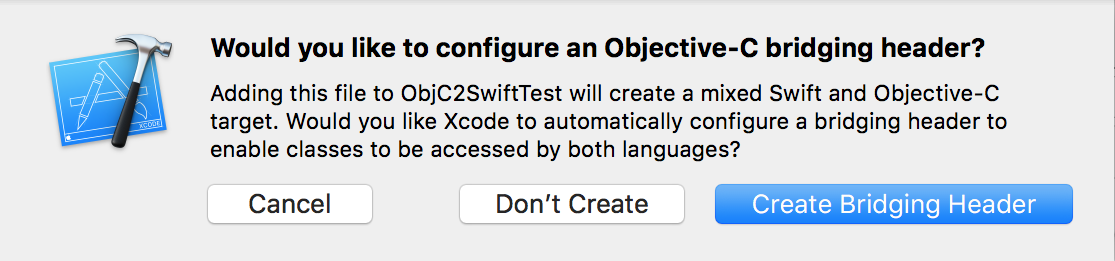

Click Create Bridging Header.
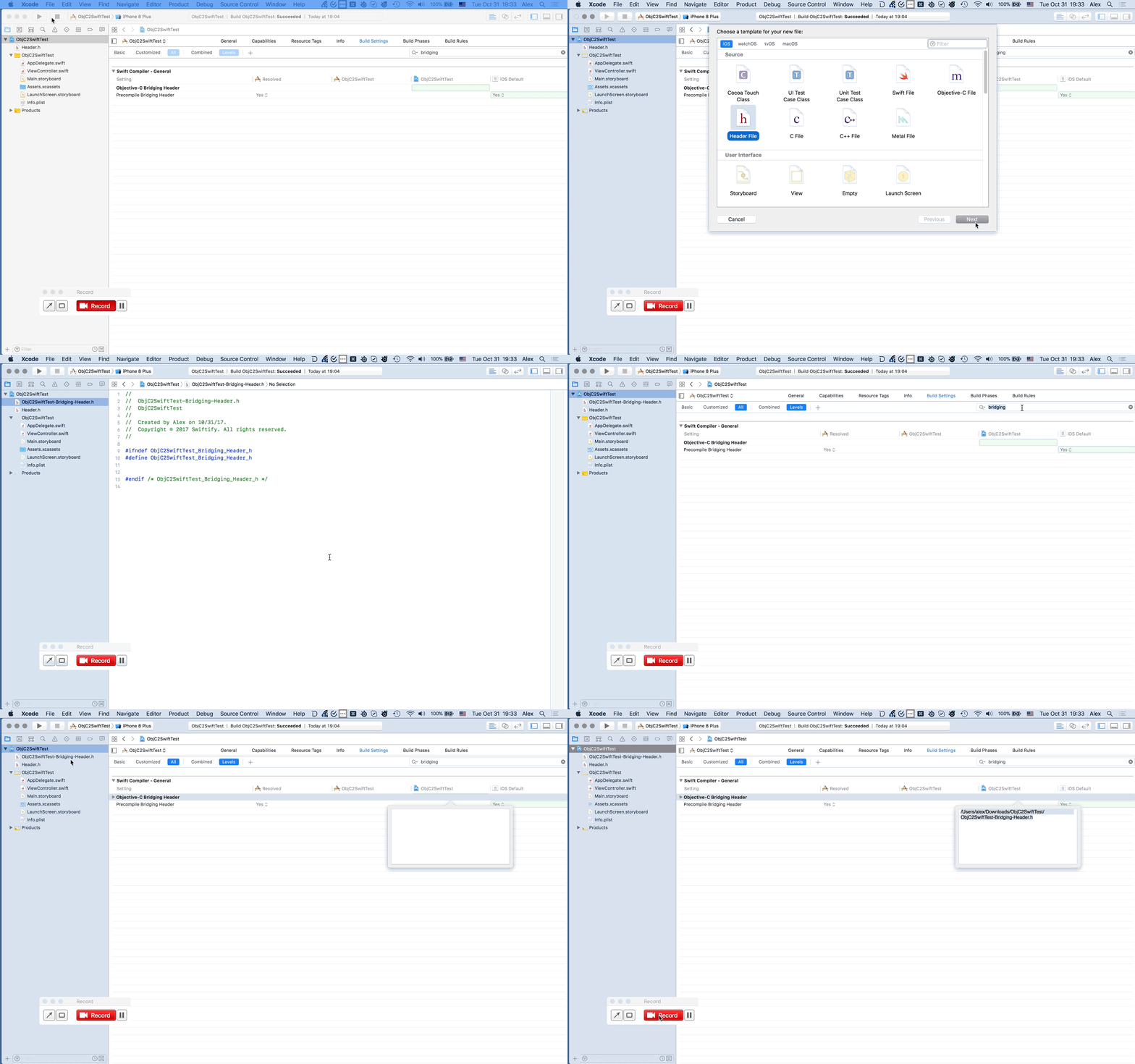
If you did not see the prompt, or accidentally deleted your bridging header, add a new .h file to your project and name it [MyProject]-Bridging-Header.h, then make sure you link its path in your target’s project settings like so:
Do I need to convert the entire project?

Don’t feel obligated to convert all your code to Swift. There may be pieces of code that you want to leave in Objective-C, and there’s nothing wrong with that.
For more information, please take a look at our post, Should I Convert Everything to Swift?.

A step-by-step approach

  1. Pick a pair of .h and .m files to be converted into Swift (i.e. MyViewController.h and MyViewController.m). If your goal is to convert the entire project to Swift, leave the AppDelegate class for last.
  2. Search for #import “MyViewController.h” through your whole project
  3. Remove #import “MyViewController.h” from the Obj-C Bridging Header File ([MyProject]-Bridging-Header.h).
  4. In all .m files: Replace instances of #import “MyViewController.h“ with #import “[MyProject]-Swift.h“ to import your Swift umbrella header instead.
  5. In all .h files: Replace #import “MyViewController.h“ with a forward class declaration: @class MyViewController. This helps to avoid circular references between header files.
  6. Convert the pair of Objective-C files to Swift. The Finder extension included in Swiftify for Xcode is the easiest way to do that. Alternatively, copy contents of both .h and .m files to a .swift file and use the “Convert File to Swift” command in the Swiftify Xcode Extension.
  7. Remove .h and .m files from the project, and add the converted .swift file instead.
  8. Try to compile the project, and fix any conversion errors. Many issues can be fixed by following Xcode auto-fix suggestions. The Editor → Fix All in Scope command is especially helpful here. If you see any error that occurs a lot to your project, feel free to report the issue to Swiftify.
  9. Build and run the project. If the runtime complains that it can’t find this class (this is usually accompanied by crashing), find all references to it in the Storyboard (or XIB) editor and reenter the class name in the Identity Inspector. Save and try again.

If you’re converting the entire project

When all of the other files have been converted, convert the AppDelegate class. At this point, if there are no Objective-C files left in the target, you can delete the main.m file and the .pch (precompiled header) file.

How has your experience been moving to Swift?

Is there any part of the conversion that you found difficult?

Related articles
The following articles may be very helpful for your project migration:
https://developer.apple.com/library/content/documentation/Swift/Conceptual/BuildingCocoaApps/Migration.html
Additionally, here is a very good description for using the Bridging Header filefor interoperability between Objective-C and Swift code.

Wednesday, April 4, 2012

How to Rename Your Wireless Apple Mouse, Magic Mouse

As many of you should know, Apple has recently launched a new, Multi-Touch capable mouse - the Magic Mouse. The older mouse didn’t leave the scene as the new one arrived, although Apple is heavily promoting the new peripheral. The two mice have something in common - they’re Bluetooth-capable and work with Mac OS X wirelessly.

Wireless mice are great to use. You feel completely free to handle them any way you want. With Apple mice, the functionality goes above that of traditional mice. They’re even allowed to have their own name, like “John’s Mouse,” or “My Super-Cool Mouse.” But how do you give your mouse a name, or how do you change the name of an Apple wireless mouse, in case you’re the not the first person to use it? This short tutorial will let you in on that secret.

Upon setting up your wireless Apple mouse (whether it’s the former Mighty Mouse, or the new, exquisite Magic Mouse), Mac OS X pairs the device to the computer you’re going to use it with, and automatically assigns it a name. The name is assigned based on your computer’s name (root directory). However, if you want to change it, you can. Here's how.

(don't forget to click on the images for a larger view)

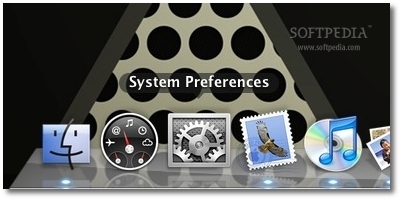
1. With your wireless mouse connected and working, launch System Preferences.

Review image


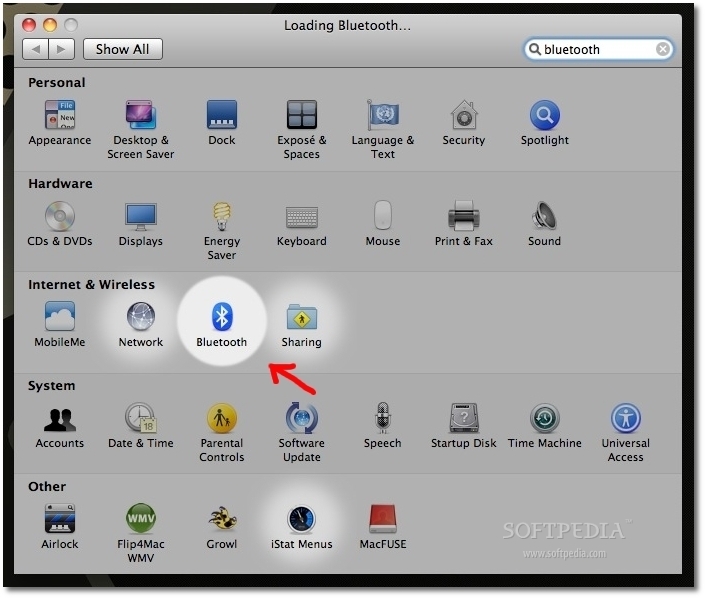
2. For one reason or another, Apple decided not to include the option to rename your paired devices at first glance. So, instead of choosing “Mouse,” choose “Bluetooth.” It should be on the third row down, between “Network and “Sharing.”

Review image

3. Once in Bluetooth prefs, select the mouse you want to rename and click the small cogwheel, located under the list of paired devices (the cogwheel is found throughout Mac OS X and typically hides more options).

Review image

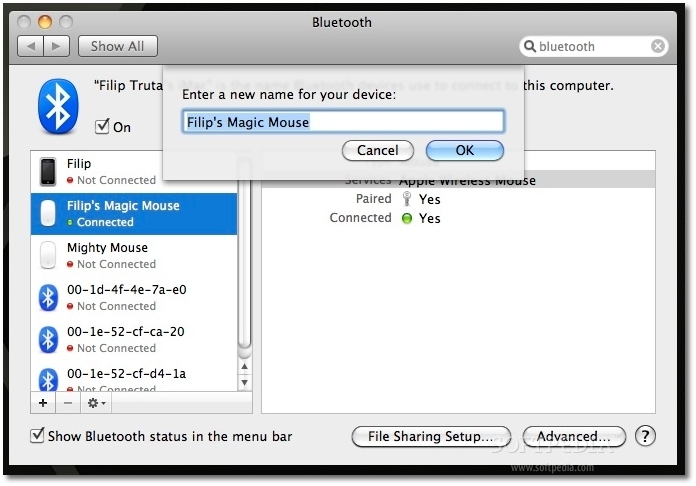
4. As shown above, select “rename.” A drop-down menu will appear containing a field where you can write down the new name of your mouse - as shown in the screenshot below.

Review image

5. Hit OK, and close System Prefs. That’s it!

You can now check out your rodent’s new name by clicking on the Bluetooth icon in the menubar, located at the top right side of your Mac’s screen.

Review image

Tuesday, April 3, 2012

App Store Review Guidelines


Introduction

We're pleased that you want to invest your talents and time to develop applications for iOS. It has been a rewarding experience - both professionally and financially - for tens of thousands of developers and we want to help you join this successful group. We have published our App Store Review Guidelines in the hope that they will help you steer clear of issues as you develop your app and speed you through the approval process when you submit it.
We view Apps different than books or songs, which we do not curate. If you want to criticize a religion, write a book. If you want to describe sex, write a book or a song, or create a medical app. It can get complicated, but we have decided to not allow certain kinds of content in the App Store. It may help to keep some of our broader themes in mind:
  • We have lots of kids downloading lots of apps, and parental controls don't work unless the parents set them up (many don't). So know that we're keeping an eye out for the kids.
  • We have over 350,000 apps in the App Store. We don't need any more Fart apps. If your app doesn't do something useful or provide some form of lasting entertainment, it may not be accepted.
  • If your App looks like it was cobbled together in a few days, or you're trying to get your first practice App into the store to impress your friends, please brace yourself for rejection. We have lots of serious developers who don't want their quality Apps to be surrounded by amateur hour.
  • We will reject Apps for any content or behavior that we believe is over the line. What line, you ask? Well, as a Supreme Court Justice once said, "I'll know it when I see it". And we think that you will also know it when you cross it.
  • If your app is rejected, we have a Review Board that you can appeal to. If you run to the press and trash us, it never helps.
  • If you attempt to cheat the system (for example, by trying to trick the review process, steal data from users, copy another developer's work, or manipulate the ratings) your apps will be removed from the store and you will be expelled from the developer program.
  • This is a living document, and new apps presenting new questions may result in new rules at any time. Perhaps your app will trigger this.
Lastly, we love this stuff too, and honor what you do. We're really trying our best to create the best platform in the world for you to express your talents and make a living too. If it sounds like we're control freaks, well, maybe it's because we're so committed to our users and making sure they have a quality experience with our products. Just like almost all of you are too.

Table of Contents

1. Terms and conditions

  • 1.1

    As a developer of applications for the App Store you are bound by the terms of the Program License Agreement (PLA), Human Interface Guidelines (HIG), and any other licenses or contracts between you and Apple. The following rules and examples are intended to assist you in gaining acceptance for your app in the App Store, not to amend or remove provisions from any other agreement.

2. Functionality

  • 2.1

    Apps that crash will be rejected
  • 2.2

    Apps that exhibit bugs will be rejected
  • 2.3

    Apps that do not perform as advertised by the developer will be rejected
  • 2.4

    Apps that include undocumented or hidden features inconsistent with the description of the app will be rejected
  • 2.5

    Apps that use non-public APIs will be rejected
  • 2.6

    Apps that read or write data outside its designated container area will be rejected
  • 2.7

    Apps that download code in any way or form will be rejected
  • 2.8

    Apps that install or launch other executable code will be rejected
  • 2.9

    Apps that are "beta", "demo", "trial", or "test" versions will be rejected
  • 2.10

    iPhone apps must also run on iPad without modification, at iPhone resolution, and at 2X iPhone 3GS resolution
  • 2.11

    Apps that duplicate apps already in the App Store may be rejected, particularly if there are many of them, such as fart, burp, flashlight, and Kama Sutra apps.
  • 2.12

    Apps that are not very useful, are simply web sites bundled as apps, or do not provide any lasting entertainment value may be rejected
  • 2.13

    Apps that are primarily marketing materials or advertisements will be rejected
  • 2.14

    Apps that are intended to provide trick or fake functionality that are not clearly marked as such will be rejected
  • 2.15

    Apps larger than 20MB in size will not download over cellular networks (this is automatically prohibited by the App Store)
  • 2.16

    Multitasking apps may only use background services for their intended purposes: VoIP, audio playback, location, task completion, local notifications, etc.
  • 2.17

    Apps that browse the web must use the iOS WebKit framework and WebKit Javascript
  • 2.18

    Apps that encourage excessive consumption of alcohol or illegal substances, or encourage minors to consume alcohol or smoke cigarettes, will be rejected
  • 2.19

    Apps that provide incorrect diagnostic or other inaccurate device data will be rejected
  • 2.20

    Developers "spamming" the App Store with many versions of similar apps will be removed from the iOS Developer Program
  • 2.21

    Apps that are simply a song or movie should be submitted to the iTunes store. Apps that are simply a book should be submitted to the iBookstore.
  • 2.22

    Apps that arbitrarily restrict which users may use the app, such as by location or carrier, may be rejected
  • 2.23

    Apps must follow the iOS Data Storage Guidelines or they will be rejected
  • 2.24

    Apps that are offered in Newsstand must comply with schedules 1, 2 and 3 of the Developer Program License Agreement or they will be rejected

3. Metadata (name, descriptions, ratings, rankings, etc)

  • 3.1

    Apps or metadata that mentions the name of any other mobile platform will be rejected
  • 3.2

    Apps with placeholder text will be rejected
  • 3.3

    Apps with descriptions not relevant to the application content and functionality will be rejected
  • 3.4

    App names in iTunes Connect and as displayed on a device should be similar, so as not to cause confusion
  • 3.5

    Small and large app icons should be similar, so as to not to cause confusion
  • 3.6

    Apps with app icons and screenshots that do not adhere to the 4+ age rating will be rejected
  • 3.7

    Apps with Category and Genre selections that are not appropriate for the app content will be rejected
  • 3.8

    Developers are responsible for assigning appropriate ratings to their apps. Inappropriate ratings may be changed/deleted by Apple
  • 3.9

    Developers are responsible for assigning appropriate keywords for their apps. Inappropriate keywords may be changed/deleted by Apple
  • 3.10

    Developers who attempt to manipulate or cheat the user reviews or chart ranking in the App Store with fake or paid reviews, or any other inappropriate methods will be removed from the iOS Developer Program
  • 3.11

    Apps which recommend that users restart their iOS device prior to installation or launch may be rejected
  • 3.12

    Apps should have all included URLs fully functional when you submit it for review, such as support and privacy policy URLs

4. Location

  • 4.1

    Apps that do not notify and obtain user consent before collecting, transmitting, or using location data will be rejected
  • 4.2

    Apps that use location-based APIs for automatic or autonomous control of vehicles, aircraft, or other devices will be rejected
  • 4.3

    Apps that use location-based APIs for dispatch, fleet management, or emergency services will be rejected
  • 4.4

    Location data can only be used when directly relevant to the features and services provided by the app to the user or to support approved advertising uses

5. Push notifications

  • 5.1

    Apps that provide Push Notifications without using the Apple Push Notification (APN) API will be rejected
  • 5.2

    Apps that use the APN service without obtaining a Push Application ID from Apple will be rejected
  • 5.3

    Apps that send Push Notifications without first obtaining user consent will be rejected
  • 5.4

    Apps that send sensitive personal or confidential information using Push Notifications will be rejected
  • 5.5

    Apps that use Push Notifications to send unsolicited messages, or for the purpose of phishing or spamming will be rejected
  • 5.6

    Apps cannot use Push Notifications to send advertising, promotions, or direct marketing of any kind
  • 5.7

    Apps cannot charge users for use of Push Notifications
  • 5.8

    Apps that excessively use the network capacity or bandwidth of the APN service or unduly burden a device with Push Notifications will be rejected
  • 5.9

    Apps that transmit viruses, files, computer code, or programs that may harm or disrupt the normal operation of the APN service will be rejected

6. Game Center

  • 6.1

    Apps that display any Player ID to end users or any third party will be rejected
  • 6.2

    Apps that use Player IDs for any use other than as approved by the Game Center terms will be rejected
  • 6.3

    Developers that attempt to reverse lookup, trace, relate, associate, mine, harvest, or otherwise exploit Player IDs, alias, or other information obtained through the Game Center will be removed from the iOS Developer Program
  • 6.4

    Game Center information, such as Leaderboard scores, may only be used in apps approved for use with the Game Center
  • 6.5

    Apps that use Game Center service to send unsolicited messages, or for the purpose of phishing or spamming will be rejected
  • 6.6

    Apps that excessively use the network capacity or bandwidth of the Game Center will be rejected
  • 6.7

    Apps that transmit viruses, files, computer code, or programs that may harm or disrupt the normal operation of the Game Center service will be rejected

7. iAd

  • 7.1

    Apps that artificially increase the number of impressions or click-throughs of ads will be rejected
  • 7.2

    Apps that contain empty iAd banners will be rejected
  • 7.3

    Apps that are designed predominantly for the display of ads will be rejected

8. Trademarks and trade dress

  • 8.1

    Apps must comply with all terms and conditions explained in the Guidelines for Using Apple Trademarks and Copyrights and the Apple Trademark List
  • 8.2

    Apps that suggest or infer that Apple is a source or supplier of the app, or that Apple endorses any particular representation regarding quality or functionality will be rejected
  • 8.3

    Apps which appear confusingly similar to an existing Apple product or advertising theme will be rejected
  • 8.4

    Apps that misspell Apple product names in their app name (i.e., GPS for Iphone, iTunz) will be rejected
  • 8.5

    Use of protected 3rd party material (trademarks, copyrights, trade secrets, otherwise proprietary content) requires a documented rights check which must be provided upon request
  • 8.6

    Google Maps and Google Earth images obtained via the Google Maps API can be used within an application if all brand features of the original content remain unaltered and fully visible. Apps that cover up or modify the Google logo or copyright holders identification will be rejected

9. Media content

  • 9.1

    Apps that do not use the MediaPlayer framework to access media in the Music Library will be rejected
  • 9.2

    App user interfaces that mimic any iPod interface will be rejected
  • 9.3

    Audio streaming content over a cellular network may not use more than 5MB over 5 minutes
  • 9.4

    Video streaming content over a cellular network longer than 10 minutes must use HTTP Live Streaming and include a baseline 64 kbps audio-only HTTP Live stream

10. User interface

  • 10.1

    Apps must comply with all terms and conditions explained in the Apple iOS Human Interface Guidelines
  • 10.2

    Apps that look similar to apps bundled on the iPhone, including the App Store, iTunes Store, and iBookstore, will be rejected
  • 10.3

    Apps that do not use system provided items, such as buttons and icons, correctly and as described in the Apple iOS Human Interface Guidelines may be rejected
  • 10.4

    Apps that create alternate desktop/home screen environments or simulate multi-app widget experiences will be rejected
  • 10.5

    Apps that alter the functions of standard switches, such as the Volume Up/Down and Ring/Silent switches, will be rejected
  • 10.6

    Apple and our customers place a high value on simple, refined, creative, well thought through interfaces. They take more work but are worth it. Apple sets a high bar. If your user interface is complex or less than very good, it may be rejected

11. Purchasing and currencies

  • 11.1

    Apps that unlock or enable additional features or functionality with mechanisms other than the App Store will be rejected
  • 11.2

    Apps utilizing a system other than the In App Purchase API (IAP) to purchase content, functionality, or services in an app will be rejected
  • 11.3

    Apps using IAP to purchase physical goods or goods and services used outside of the application will be rejected
  • 11.4

    Apps that use IAP to purchase credits or other currencies must consume those credits within the application
  • 11.5

    Apps that use IAP to purchase credits or other currencies that expire will be rejected
  • 11.6

    Content subscriptions using IAP must last a minimum of 7 days and be available to the user from all of their iOS devices
  • 11.7

    Apps that use IAP to purchase items must assign the correct Purchasability type
  • 11.8

    Apps that use IAP to purchase access to built-in capabilities provided by iOS, such as the camera or the gyroscope, will be rejected
  • 11.9

    Apps containing "rental" content or services that expire after a limited time will be rejected
  • 11.10

    Insurance applications must be free, in legal-compliance in the regions distributed, and cannot use IAP
  • 11.11

    In general, the more expensive your app, the more thoroughly we will review it
  • 11.12

    Apps offering subscriptions must do so using IAP, Apple will share the same 70/30 revenue split with developers for these purchases, as set forth in the Developer Program License Agreement.
  • 11.13

    Apps that link to external mechanisms for purchases or subscriptions to be used in the app, such as a “buy” button that goes to a web site to purchase a digital book, will be rejected
  • 11.14

    Apps can read or play approved content (specifically magazines, newspapers, books, audio, music, and video) that is subscribed to or purchased outside of the app, as long as there is no button or external link in the app to purchase the approved content. Apple will not receive any portion of the revenues for approved content that is subscribed to or purchased outside of the app

12. Scraping and aggregation

  • 12.1

    Applications that scrape any information from Apple sites (for example from apple.com, iTunes Store, App Store, iTunes Connect, Apple Developer Programs, etc) or create rankings using content from Apple sites and services will be rejected
  • 12.2

    Applications may use approved Apple RSS feeds such as the iTunes Store RSS feed
  • 12.3

    Apps that are simply web clippings, content aggregators, or a collection of links, may be rejected

13. Damage to device

  • 13.1

    Apps that encourage users to use an Apple Device in a way that may cause damage to the device will be rejected
  • 13.2

    Apps that rapidly drain the device's battery or generate excessive heat will be rejected

14. Personal attacks

  • 14.1

    Any app that is defamatory, offensive, mean-spirited, or likely to place the targeted individual or group in harms way will be rejected
  • 14.2

    Professional political satirists and humorists are exempt from the ban on offensive or mean-spirited commentary

15. Violence

  • 15.1

    Apps portraying realistic images of people or animals being killed or maimed, shot, stabbed, tortured or injured will be rejected
  • 15.2

    Apps that depict violence or abuse of children will be rejected
  • 15.3

    "Enemies" within the context of a game cannot solely target a specific race, culture, a real government or corporation, or any other real entity
  • 15.4

    Apps involving realistic depictions of weapons in such a way as to encourage illegal or reckless use of such weapons will be rejected
  • 15.5

    Apps that include games of Russian roulette will be rejected

16. Objectionable content

  • 16.1

    Apps that present excessively objectionable or crude content will be rejected
  • 16.2

    Apps that are primarily designed to upset or disgust users will be rejected

17. Privacy

  • 17.1

    Apps cannot transmit data about a user without obtaining the user's prior permission and providing the user with access to information about how and where the data will be used
  • 17.2

    Apps that require users to share personal information, such as email address and date of birth, in order to function will be rejected
  • 17.3

    Apps that target minors for data collection will be rejected

18. Pornography

  • 18.1

    Apps containing pornographic material, defined by Webster's Dictionary as "explicit descriptions or displays of sexual organs or activities intended to stimulate erotic rather than aesthetic or emotional feelings", will be rejected
  • 18.2

    Apps that contain user generated content that is frequently pornographic (ex "Chat Roulette" apps) will be rejected

19. Religion, culture, and ethnicity

  • 19.1

    Apps containing references or commentary about a religious, cultural or ethnic group that are defamatory, offensive, mean-spirited or likely to expose the targeted group to harm or violence will be rejected
  • 19.2

    Apps may contain or quote religious text provided the quotes or translations are accurate and not misleading. Commentary should be educational or informative rather than inflammatory

20. Contests, sweepstakes, lotteries, and raffles

  • 20.1

    Sweepstakes and contests must be sponsored by the developer/company of the app
  • 20.2

    Official rules for sweepstakes and contests, must be presented in the app and make it clear that Apple is not a sponsor or involved in the activity in any manner
  • 20.3

    It must be permissible by law for the developer to run a lottery app, and a lottery app must have all of the following characteristics: consideration, chance, and a prize
  • 20.4

    Apps that allow a user to directly purchase a lottery or raffle ticket in the app will be rejected

21. Charities and contributions

  • 21.1

    Apps that include the ability to make donations to recognized charitable organizations must be free
  • 21.2

    The collection of donations must be done via a web site in Safari or an SMS
  • 22.1

    Apps must comply with all legal requirements in any location where they are made available to users. It is the developer's obligation to understand and conform to all local laws
  • 22.2

    Apps that contain false, fraudulent or misleading representations will be rejected
  • 22.3

    Apps that solicit, promote, or encourage criminal or clearly reckless behavior will be rejected
  • 22.4

    Apps that enable illegal file sharing will be rejected
  • 22.5

    Apps that are designed for use as illegal gambling aids, including card counters, will be rejected
  • 22.6

    Apps that enable anonymous or prank phone calls or SMS/MMS messaging will be rejected
  • 22.7

    Developers who create apps that surreptitiously attempt to discover user passwords or other private user data will be removed from the iOS Developer Program
  • 22.8

    Apps which contain DUI checkpoints that are not published by law enforcement agencies, or encourage and enable drunk driving, will be rejected

Living document

This document represents our best efforts to share how we review apps submitted to the App Store, and we hope it is a helpful guide as you develop and submit your apps. It is a living document that will evolve as we are presented with new apps and situations, and we'll update it periodically to reflect these changes.
Thank you for developing for iOS. Even though this document is a formidable list of what not to do, please also keep in mind the much shorter list of what you must do. Above all else, join us in trying to surprise and delight users. Show them their world in innovative ways, and let them interact with it like never before. In our experience, users really respond to polish, both in functionality and user interface. Go the extra mile. Give them more than they expect. And take them places where they have never been before. We are ready to help.

Friday, July 1, 2011

Apple Patents Improve iPhone Security With Biometrics

In a hint of things to come, more patents submitted by Apple just a few months ago show advances in future security designs for iPhones and notebook computers. The new authentication methods include several biometric technologies that would verify the identity of a user without any additional input from the owner of the device.

apple iphone patent security fingerprint biometric

Examples would use cameras and software for facial recognition or allow a touch screen to identify a fingerprint. These methods could authenticate a user and protect private information without the current delay required when entering a passcode.

Apple has also envisioned systems that would identify a user based on retinal patterns, the shape of their ears, or the sound of the user's voice. Other methods described in the patent application would have the user touch a sequence of shapes or gesture on the device in a particular pattern to unlock.

Although it sounds far-fetched, with further advances in mobile hardware even Apple's suggestion that DNA could be analyzed to authenticate may not be too far off.

Wednesday, June 8, 2011

Adding a UIButton Programatically

You might know how to add a button via IB – here is a code sample of how to do that using code

UIButton *btn = [UIButton buttonWithType:UIButtonTypeRoundedRect];
[btn addTarget:self action:@selector(btnClick:) forControlEvents:UIControlEventTouchDown];
[btn setTitle:@"SKIP" forState:UIControlStateNormal];
btn.frame = CGRectMake(0, 100, 320, 50);
[self.view addSubview:btn];

and if you want to add a background image


UIImage *someImage = [UIImage imageNamed:@"splashImage.png"];
[btn setBackgroundImage:someImage forState:UIControlStateNormal];

Difference between 2 UIDatePicker’s in hours

UIDatePicker *date1;
UIDatePicker *date2;

The function to show difference between these two date pickers


NSDate *date1Val = date1.date;
NSDate *date2Val = date2.date;
NSTimeInterval interval = [date2Val timeIntervalSinceDate:date1Val];
int hours = (int)interval / 3600;
int minutes = (interval - (hours*3600)) / 60;
NSString *timeDiff = [NSString stringWithFormat:@"%d:%d", hours, minutes];

Wednesday, May 25, 2011

iOS - File Sharing


File Sharing requires

  • The latest version of iTunes
  • Mac OS X v10.5.8 or later or an up-to-date version of Windows XP, Windows Vista, or Windows 7
  • An iOS device (with the latest version of iOS)
  • An iOS application that supports File Sharing

How to copy files using File Sharing

  1. Connect your iOS device to your computer using the included Dock Connector to USB cable.
  2. Launch iTunes 9.1 or later on your computer.
  3. Select your iOS device from the Devices section of iTunes.

    iTunes Devices section
  4. Click the Apps tab and scroll down to the bottom of the page.

    Note: If you do not see the File Sharing section shown in the image below, your iOS device does not have any apps that support File Sharing.

    iTunes File Sharing tab
  5. Under the File Sharing section, you'll find a list of apps currently installed on your iOS device that support File Sharing. Select an app to view a list of the files associated with that app on your iOS device.


    iTunes apps and documents list

How to copy files from your computer to your iOS app

  1. Be sure to select the appropriate application in the Apps list under File Sharing.
  2. Drag and drop files onto the Documents list to copy them to the app on your iOS device or…
  3. Click the Add… button, locate the file or files you want to copy from your computer, and click Choose. The selected files will be copied to the app on your iOS device immediately. Select only files that are supported by the iOS device app. Refer to the iOS app’s documentation to determine which file formats it supports.

    Copy to iPad dialog

How to copy files from an iOS app to your computer

  1. Be sure to select the appropriate application in the Apps list under File Sharing.
  2. Drag and drop files from the Documents list to a folder or window on your computer to copy them to your computer, or…
  3. Select the file or files you want to copy to your computer from the Documents list and click the "Save to…" button. Select only files that are supported by the iOS app. Refer to the iOS app’s documentation to determine which file formats it supports. Locate the folder on your computer to which you want to copy the files and click the Choose button. The selected files will be copied to the selected folder on your computer immediately.

    Copy to computer from iPad


Additional Information

How does File Sharing work?

File Sharing enables you to copy files from your computer to apps on your iOS device and from those apps to your computer. Not all iOS apps support File Sharing. Using File Sharing, files are copied into an iOS app and can only be opened from within that app if the app supports it. Refer to the documentation that came with the iOS app to determine supported file formats, and how to interact with shared documents.


Will I lose the files shared to an application if I delete that app from my iOS device?

Yes. Deleting an app on your iOS device with shared files will also delete the files on the iOS device associated with it. To avoid losing shared files on your iOS device associated with the app, back up and copy shared files to your computer frequently, and especially prior to deleting the application from your iOS device.

How do I back up shared files?

iTunes will back up the shared files on your iOS device when it syncs your iOS device with your computer. You cannot select and restore specific files from a backup, so be sure to copy files you have created on your iOS device frequently to a folder on your computer.

Where do I find files copied to apps on my iOS device?

The files you copy from your computer are only accessible from within the app on the iOS device to which you have copied the file. They are not accessible from other apps or locations on your iOS device. You can view the list of files under the File Sharing section of the Apps tab in iTunes when your iOS device is connected to your computer. See "How to copy files using File Sharing," above.


How do I delete files I copied to an app on my iOS device?

To delete a file you copied to an iOS device app using File Sharing:

  1. Attach your iOS device to your computer.
  2. Select your iOS device in the Devices section of iTunes.
  3. Click the Apps tab, then scroll down to the File Sharing section.
  4. Select the application from which you would like to delete a specific file.
  5. Select the file from the Documents list and press the Delete key on your keyboard.
  6. When prompted to confirm your request, click Delete.

    Delete confirmation window
  7. The file will be deleted from the app on your iOS device immediately.

Some applications may also support additional methods for deleting files. Refer to your application's documentation for further information.


Wednesday, April 27, 2011

Free Software for Mac os

Web Browsing

firefox

Mozilla Firefox

The premier free, open-source browser. Tabs, pop-up blocking, themes, and extensions. Considered by many to be the world's best browser.
Download Page

Video Player, Torrents, Podcasting

miro

Miro

Beautiful interface. Plays any video type (much more than quicktime). Subscribe to video RSS, download, and watch all in one. Torrent support. Search and download from YouTube and others.
Download Page

IM - Instant Messaging

adium

Adium

Connect to multiple IM accounts simultaneously in a single app, including: AOL IM, MSN, and Jabber. Beautiful, themable interface.
Download Page

Video Converter, iPhone Converter

video converter

Miro Video Converter

Convert any type of video to mp4 or theora. Convert any video for use with iPhone, iPod, Android, etc. Very clean, easy to use interface.
Download Page | Mac App Store (free)

Application Launching

quicksilver

Quicksilver

Quicksilver lets you start applications (and do just about everything) with a few quick taps of your fingers. Warning: start using Quicksilver and you won't be able to imagine using a Mac without it.
Download Page

Email

thunderbird

Mozilla Thunderbird

Powerful spam filtering, solid interface, and all the features you need.
Download Page

Utilities

The Unarchiver

The Unarchiver

Uncompress RAR, 7zip, tar, and bz2 files on your Mac. Many new Mac users will be puzzled the first time they download a RAR file. Do them a favor and download UnRarX for them!
Download Page

DVD Ripping

handbrake icon

Handbrake

DVD ripper and MPEG-4 / H.264 encoding. Very simple to use.
Download Page

RSS

vienna

Vienna

Very nice, native RSS client.
Download Page
rssowl

RSSOwl

Solid cross-platform RSS client.
Download Page

Peer-to-Peer Filesharing

cabos icon

Cabos

A simple, easy to use filesharing program. Gnutella network.
Download Page
solarseek

SolarSeek

Soulseek filesharing for Mac, in a simple, solid client.
Download Page
transmission icon


Transmission

Very nice torrent downloader.
Download Page

Running Windows Software on Macs

Q

Q Emulator

Run Windows programs on your Intel Mac at near native speed. Works on G4 / G5 Macs too, but much slower.
Download Page

Podcasting

juice

Juice

Solid podcasting client.
Download Page

Video Playback

VLC

VLC

Plays more video files than most players: Quicktime, AVI, DIVX, OGG, and more. Pretty good interface.
Download Page
MPlayer

MPlayer

The interface and buttons are not as nice or as Mac-like in feel, but it may play even more video files than VLC.
Download Page
MPlayer

Perian

A plugin that allows quicktime to play additional video formats. (Included in Democracy Player.)
Download Page

iPod Ripping

iPodDisk

iPodDisk

Copy music off your iPod in the finder, like a regular disk drive.
Download Page

CD / DVD Burning

handbrake icon

Burn

CD and DVD Burner. Burn any video to a disc that plays in your DVD player!
Download Page

Privacy

vidalia

Vidalia

This TOR frontend keeps you anonymous on the web using military-grade techniques. For use with Firefox see: TorButton.
Download Page

Word Processing / Office Suites

bean

Bean

Very fast and easy to use word processor. Live word count, autosaving, more.
Download Page
openoffice

OpenOffice

OpenOffice is a full-featured, office suite compatible with Microsoft Word, Powerpoint, and Excel. Friends don't let friends pay for Microsoft Office.
Download Page
abiword

AbiWord

A word processor. Leaner and quicker than OpenOffice. Compatible with Microsoft Word documents and OpenDocument Format.
Download Page

Wifi Scanning

kismac

KisMac

The best wireless scanner for Mac. Find wireless access when you're on the go.
Download Page

Sound Recording

audacity

Audacity

Simple sound recording tool.
Download Page

Graphics, Photo, Publishing

seashore

Seashore

Based on Gimp, but doesn't require X11.
Download Page
formulate pro

Formulate Pro

An easy way to fill-out (or sign) PDFs that Preview can't edit.
Download Page
Xee

Xee

Fast image viewer and image browser.
Download Page
gimp

Gimp.app

Photo editing application that rivals Photoshop in features (requires X11).
Download Page
inkscape

Inkscape

Vector graphics application (requires X11).
Download Page
scribus

Scribus

Desktop publishing. Complicated install, but a nice app.
Download Page

FTP / SFTP

cyberduck

Cyberduck

Very good all-around ftp program.
Download Page
onebutton ftp

OneButton FTP

Simple, fast FTP, with a focus on "advanced queuing".
Download Page
fugu

Fugu

Not as polished as Cyberduck (and only for SFTP) but has a side by side interface showing your files and the remote files.
Download Page

HTML / Text Editing

smultron

Smultron

Text / html editor. Integrates with Cyberduck for editing websites.
Download Page
NVU

Nvu

Visual tool for making websites (WYSIWYG html editor), comparable to Dreamweaver.
Download Page

IRC

colloquy

Colloquy

Great IRC client.
Download Page

Web Development

wavemaker.gif

WaveMaker

A visual development tool for building great-looking web and cloud applications.
Download Page

Note Taking

freemind

Freemind

An innovative application for note taking and outlining. Takes time to get used to, but some people swear by it.
Download Page

Personal Finance

cashbox

Cashbox

Simple, easy to use application for managing personal finances.
Download Page
buddi

Buddi

A personal finance and budgeting program, aimed at those who have little or no financial background.
Download Page

MSN Chat

More Web Browsing

shiira

Shiira

Fast, nice web browser.
Download Page
sunrise browser

SunriseBrowser

Good webkit-based browser created with special tools for web designers.
Download Page
seamonkey

Seamonkey

Full-featured Mozilla browser, used to be called 'Mozilla Suite'.
Download Page

PDF Viewer

skim

Skim

PDF viewer.
Download Page

Screensaver

electric sheep

Electric Sheep

Immersive, trippy screensaver.
Download Page

More Filesharing

bittorrent

Tomato Torrent

Download torrents. Nice and simple.
Download Page
Also see: Poisoned - Azureus

3D Graphics and Modeling

blender

Blender

Powerful 3D Modeling software.
Download Page

Planetariums and Outer Space

celestia icon

Celestia

Open-source 3D planetarium software. Akin to traveling through space (outer space).
Download Page
stellarium icon

Stellarium

"Renders realistic skys in realtime." See what you would see if your city wasn't so light-polluted. Used in real planetariums.
Download Page
Also see: macORSA - Orbit Reconstruction, Simulation, and Analysis

Comic Viewer

jomic

Jomic

Read digital comics.
Download Page

Dance Dance Revolution

stepmania

Stepmania

Dance Dance Revolution clone. Can connect to external dance pads.
Download Page

Games

cube icon

Cube

Nice first-person shooter.
Download Page
Marathon: Aleph One icon

Marathon: Aleph One

Engine for Bungie's free FPS series Marathon. Play online, solo play with rich original story, many total conversions and thousands of maps.
Download Page
zombies icon

Zombies

3D zombie strategy game.
Download Page
armagetron

Armagetron Advanced

3D Tron game.
Download Page
BZflage logo

BZFlag

First-person tank game.
Download Page
Battle for Wesnoth logo

Battle for Wesnoth

Fantasy / Strategy Game
Download Page
Also see: Snes9X (SNES emulator), Frozen Bubble, PySol for Mac (card games), PLANESHIFT (3D Fantasy MMORPG), VDrift (drift racing simulation).

del.icio.us Client

cocoalicious

Cocoalicious

Let's you easily post to del.icio.us.
Download Page

Free File Hosting

CC Publisher

CC Publisher

Host Creative Commons video or audio files for free on archive.org with this easy uploader.
Download Page

Quick Links


Viewers Comic viewer: Comical
Comic viewer: FFView
OpenDocument viewing application: ODF Viewer

RSS and Usenet
RSS Reader: Feed
Cross-platform RSS reader: BlogBridge
RSS video podcast player: I/ON
Usenet Reader: OSXnews

IM, IRC, Chat
Multi-IM: Fire
Powerful IRC client: X-Chat Aqua
Videoconferencing client: XMeeting
PBX / Voip system: Asterisk

Graphics and Art
Draw on a moving canvas: Cosmic Painter
Image editor: Seashore
An artwork scaling calculator: Scaletron!
A Paint-like program designed for pixel-pushers: Pixen
A VRML/X3D Browser: FreeWRL
Video
Realtime Editing and Effects System: Jahshaka
Video transcoder: ffmpegX
MPEG convertor: MPEG Streamclip

Music and Audio
OGG Vorbis encoder (ogg is an open source audio codec): Ogg Drop
Music notation: LilyPond
Play and compose live music: Miraton
Max/MSP style realtime music and multimedia environment: Pd
Manage chords, lyrics, and projection: OpenSong

Wifi / Networking
Discover open wifi networks: iStumbler
A Prism/Prism2 driver 802.11: WirelessDriver
Fast, lightweight VNC client: Chicken of the VNC
VNC server providing remote access to the GUI, keyboard and mouse: OSXvnc

Utilities
Manage disk space: DiskInventoryX
Book management: Books
CD / DVD Burning: SimplyBurns
Disable sleep on a Mac: InsomniaX
Protect your laptop with a car-alarm style alarm: Multialarm
Remove extra languages from OSX to save disk space: Monolingual
System event notifications: Growl
System performance monitors: MenuMeters
Virtual desktop tool: Desktop Manager
Virus checker: ClamXav
Share mouse and keyboard between 2 or more computers: SynergyKM and Quick Synergy
Check available RAM: Memtest
Monitor CPU, RAM, battery, CPU temp, network, I/O, and more: X Resource Graph
Control your Mac via Bluetooth: Romeo

Writing and Typesetting
Screenplay writing and pre-production support: Celtx
Bibliography manager, BibTeX .bib format: BibDesk
Typesetting - TeX previewer for Mac OS X: TeXShop
Typesetting: iTexMac

Education
Education course management system: Moodle
Student information system: Focus / SIS
Another student information system: Centre

Programming
Development platform: Eclipse
SQL Editor: YourSQL

Math and Engineering
General purpose computer algebra system: Yacas
GNU S language: R
MATLAB style rapid engineering and scientific prototyping / data processing: FreeMat